Best Docking Station for Home Office:
Rated & Ranked
We evaluated 18 docking stations across six weighted categories — from connection standard and display capability to real-world usability and long-term value. Every score is derived from measurable specifications, not brand preference. The result: a defensible, comparable 0–10 rating for each unit spanning Thunderbolt 5, Thunderbolt 4, USB-C, and DisplayLink tiers.
Product links are Amazon affiliate links — purchases support this site at no cost to you.
The ranking below uses our recommended weights — the balance of factors we believe matters most for a typical home office. If your priorities differ, switch to Customize Weights and re-rank the table around what you care about.
Full Comparison — Grouped by Connection Tier, Ranked
| # | Product | Score | Standard ? | Max Displays ? | Max Res ? | Native ? | PD ? | USB-A Ports ? | Ethernet ? |
|---|---|---|---|---|---|---|---|---|---|
| ▸ Thunderbolt 5 — Newest standard: up to 80Gbps bandwidth, backward-compatible with Thunderbolt 4 and 3 | |||||||||
| 1 |
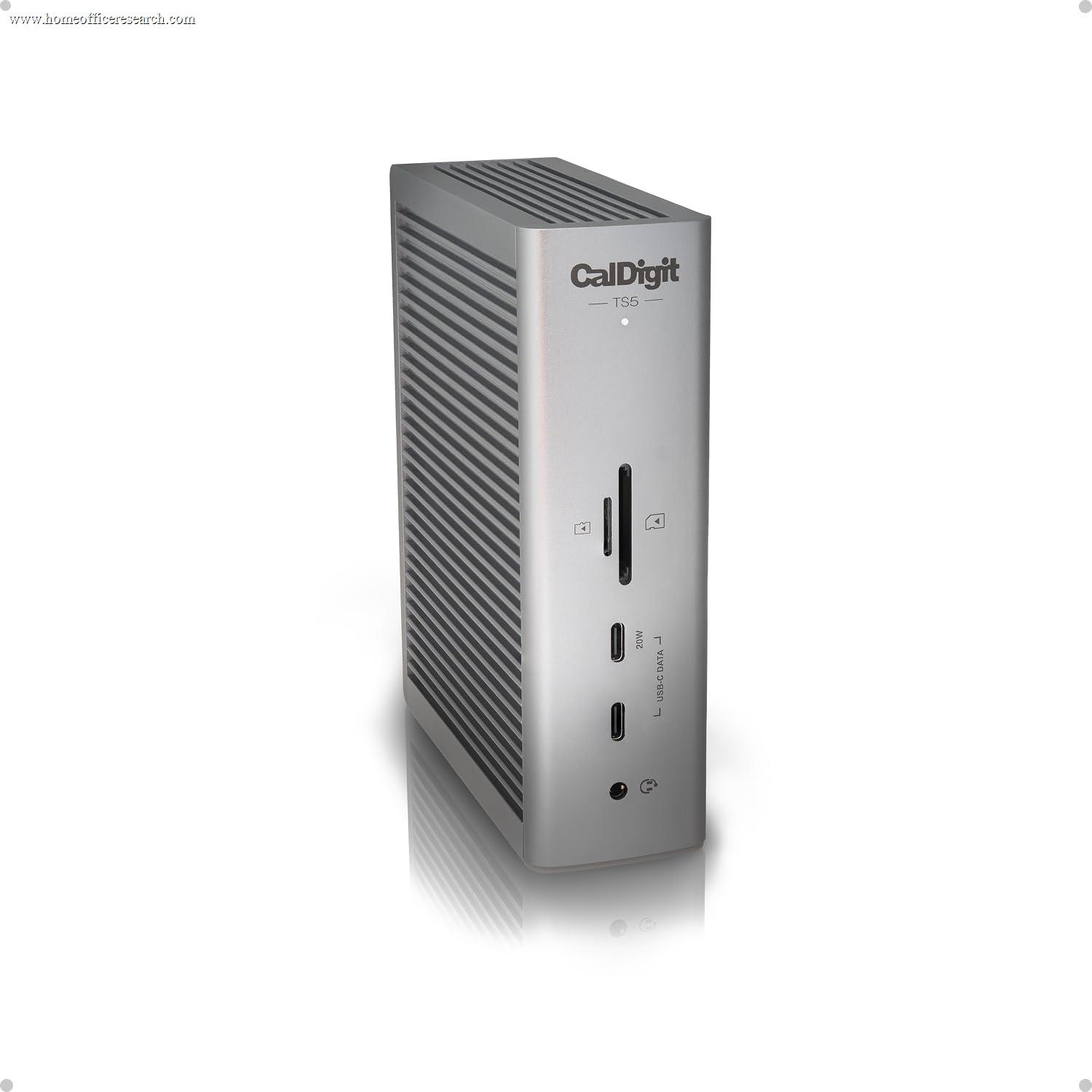
|
9.6/10 |
Thunderbolt 5 | 2 | 8K@60Hz | ✓ | 140W | 5 | 10GbE |
| ▸ Thunderbolt 4 — Recommended: Full 40Gbps bandwidth, driverless, maximum compatibility | |||||||||
| 2 |
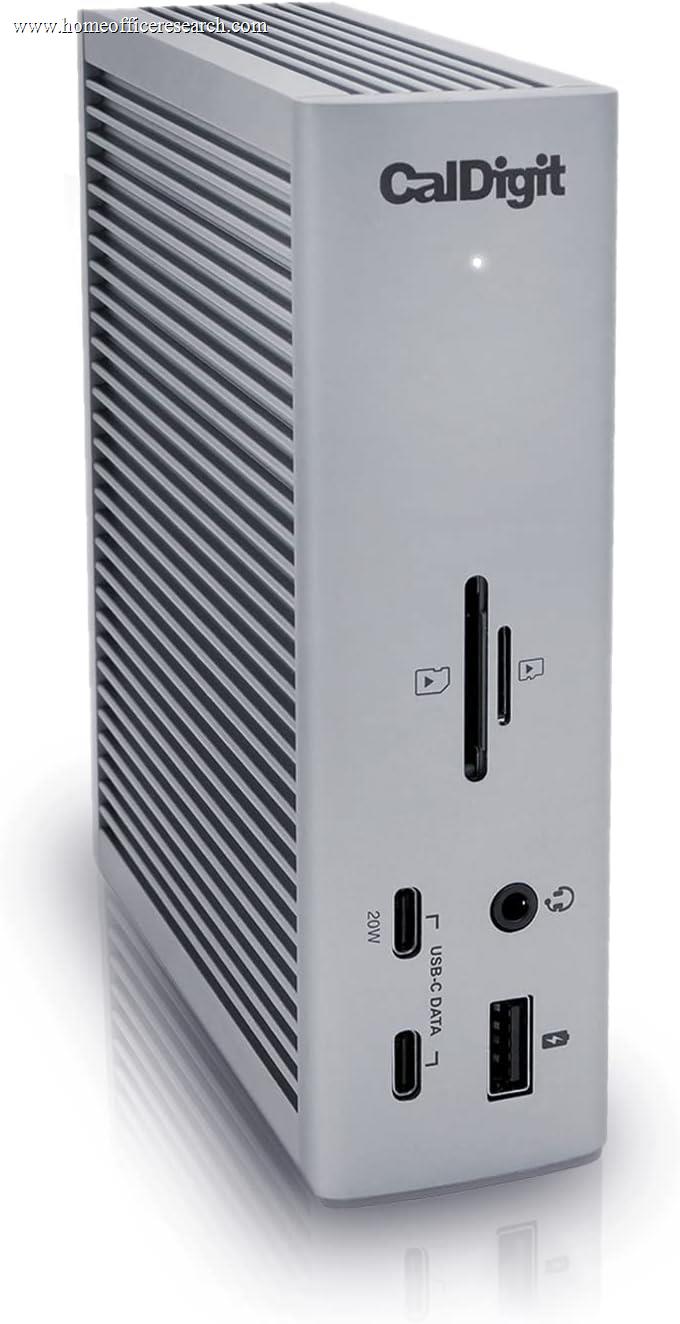
|
9.4/10 |
Thunderbolt 4 | 2 | 6K@60Hz | ✓ | 98W | 5 | 2.5GbE |
| 3 |

|
8.6/10 |
Thunderbolt 4 | 2 | 4K@60Hz | ✓ | 90W | 4 | 1GbE |
| 4 |

|
8.4/10 |
Thunderbolt 4 | 2 | 4K@60Hz | ✓ | 100W (96W certified) | 4 | 1GbE |
| 5 |
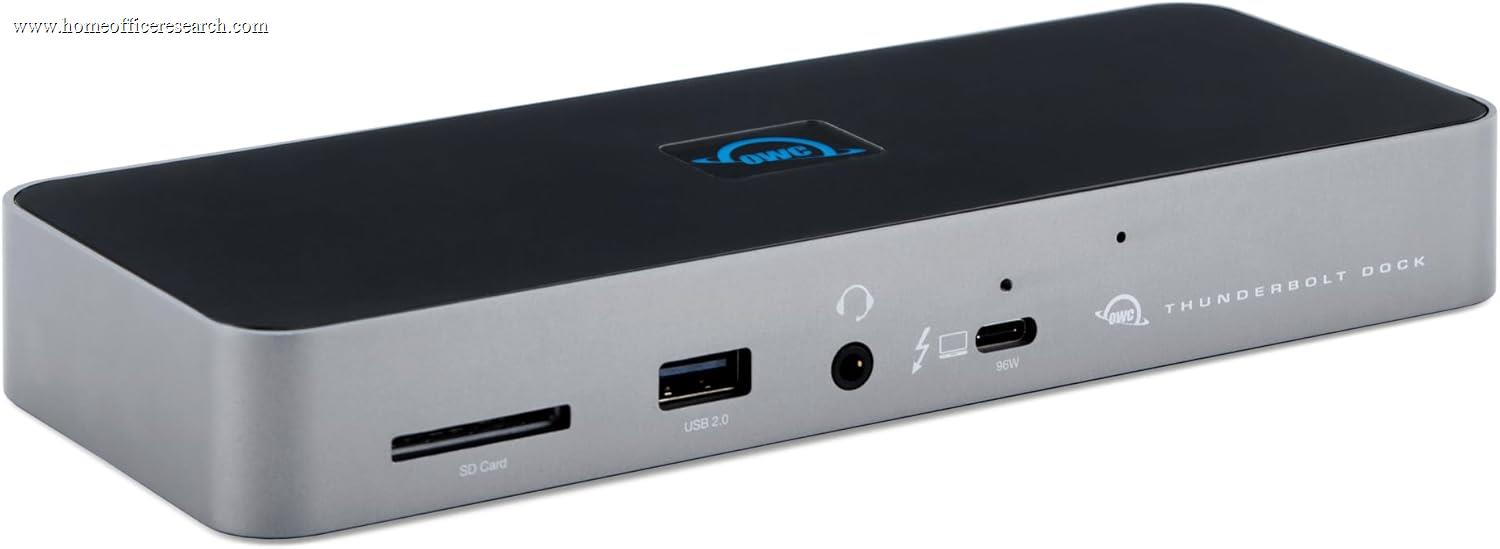
|
8.1/10 |
Thunderbolt 4 | 2 | 4K@60Hz | ✓ | 90W | 4 | 1GbE |
| 6 |

|
7.8/10 |
Thunderbolt 4 | 4 | 4K@60Hz | ✓ | 100W | 4 | 1GbE |
| 7 |
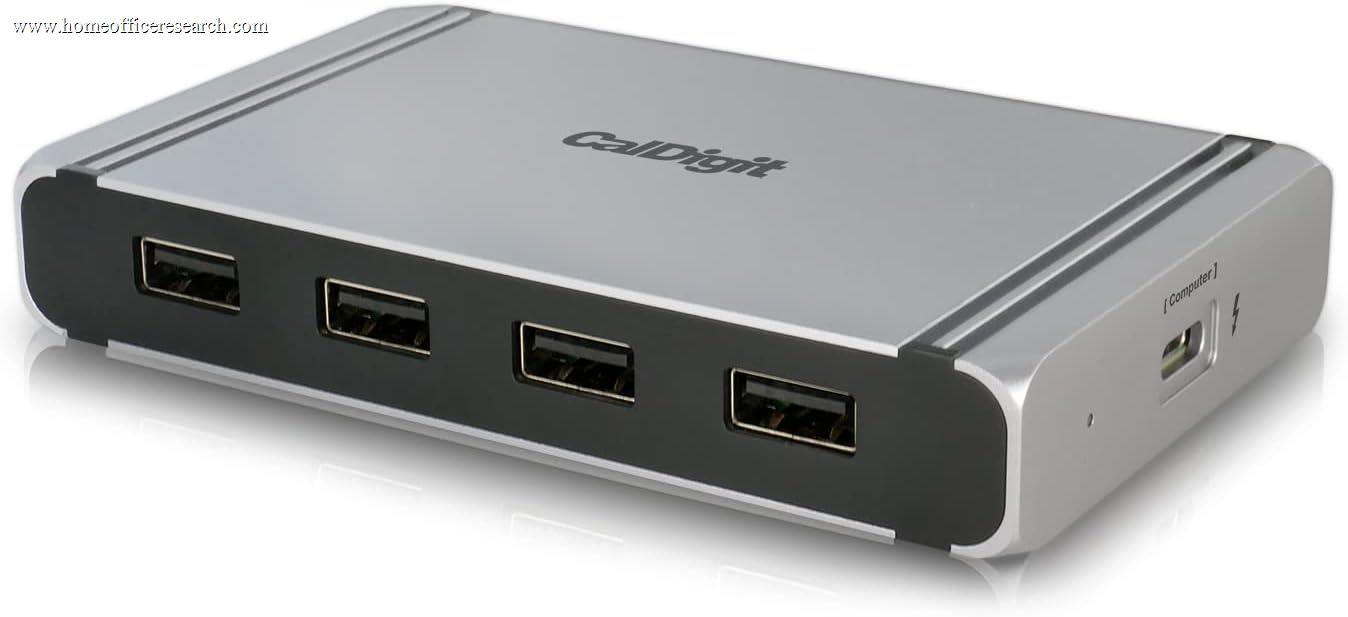
|
7.4/10 |
Thunderbolt 4 | 1–2 | 6K@60Hz | ✓ | 60W | 4 | — |
| ▸ DisplayLink USB-C — Recommended: Bypasses native display limits; driver required | |||||||||
| 8 |

|
7.9/10 |
DisplayLink | 2 | 4K@60Hz | — | 100W | 5 | 1GbE |
| 9 |
|
7.2/10 |
DisplayLink | 4 | 4K@60Hz | — | 100W | 4 | 1GbE |
| ▸ USB-C Native (Alt Mode) — Good for most laptops; bandwidth-constrained vs. Thunderbolt | |||||||||
| 10 |
|
7.1/10 |
USB-C Alt Mode | 2 | 4K@60Hz | ✓ | 85W | 4 | 1GbE |
| 11 |
|
6.9/10 |
USB-C Alt Mode | 2 | 4K@60Hz | ✓ | 85W | 3 | 1GbE |
| 12 |

|
6.6/10 |
USB-C Alt Mode | 2 | 4K@30Hz | ✓ | 85W | 3 | 1GbE |
| 13 |
|
6.4/10 |
USB-C Alt Mode | 2 | 4K@60Hz | ✓ | 65W | 3 | 1GbE |
| 14 |
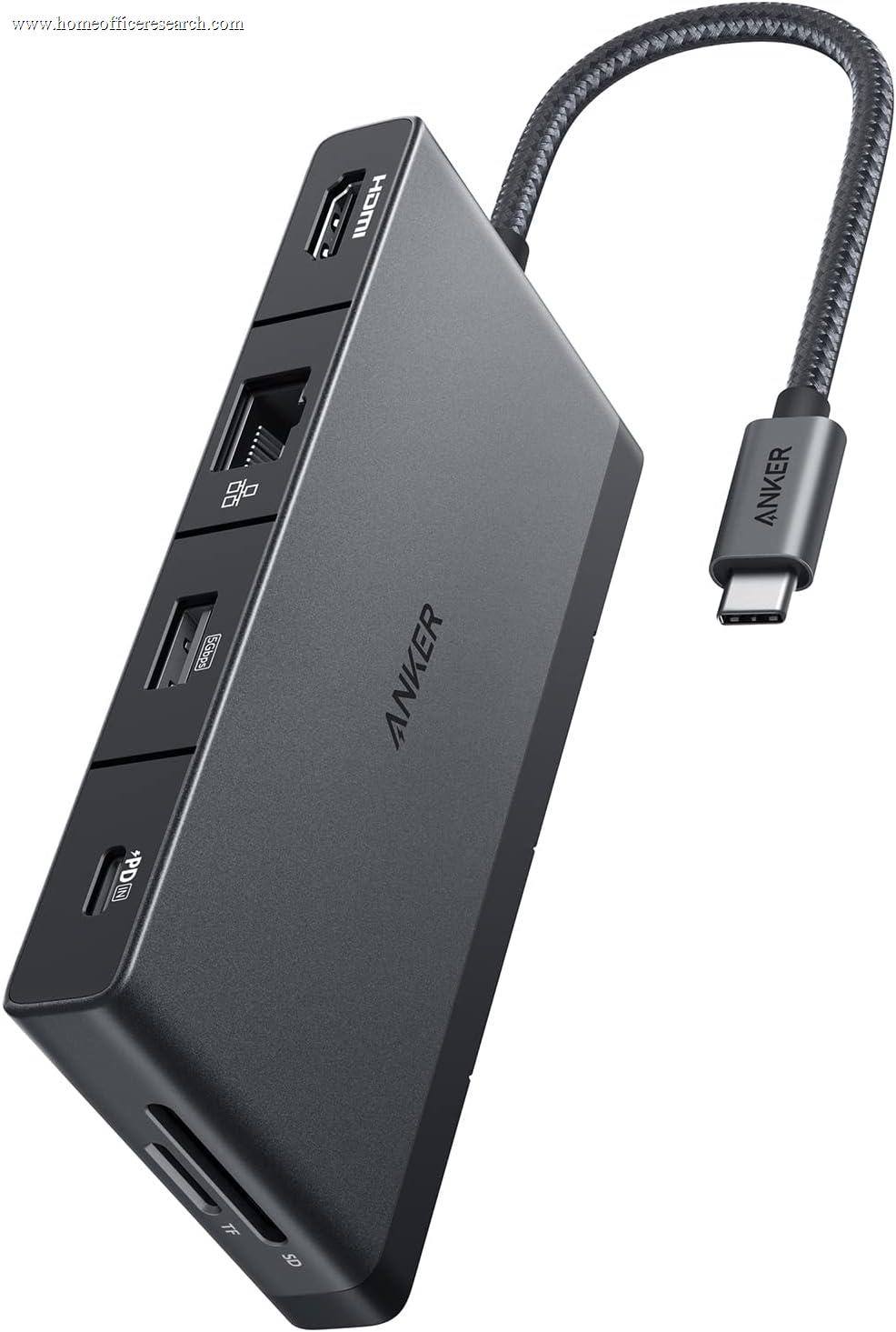
|
5.8/10 |
USB-C Alt Mode | 1 | 4K@30Hz | ✓ | 85W | 2 | 1GbE |
| ▸ Legacy / Single-Display — USB-A Host or Older Thunderbolt 3 | |||||||||
| 15 |

|
6.8/10 |
Thunderbolt 3 | 2 | 5K@60Hz | ✓ | 87W | 5 | 1GbE |
| 16 |
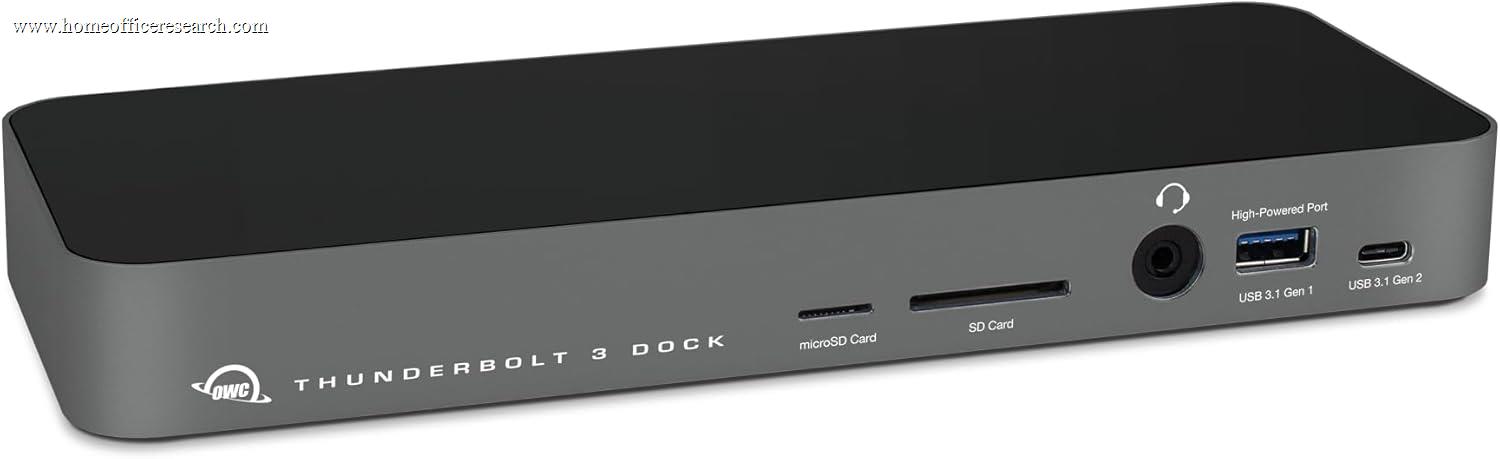
|
5.6/10 |
Thunderbolt 3 | 2 | 4K@60Hz | ✓ | 85W | 5 | 1GbE |
| 17 |
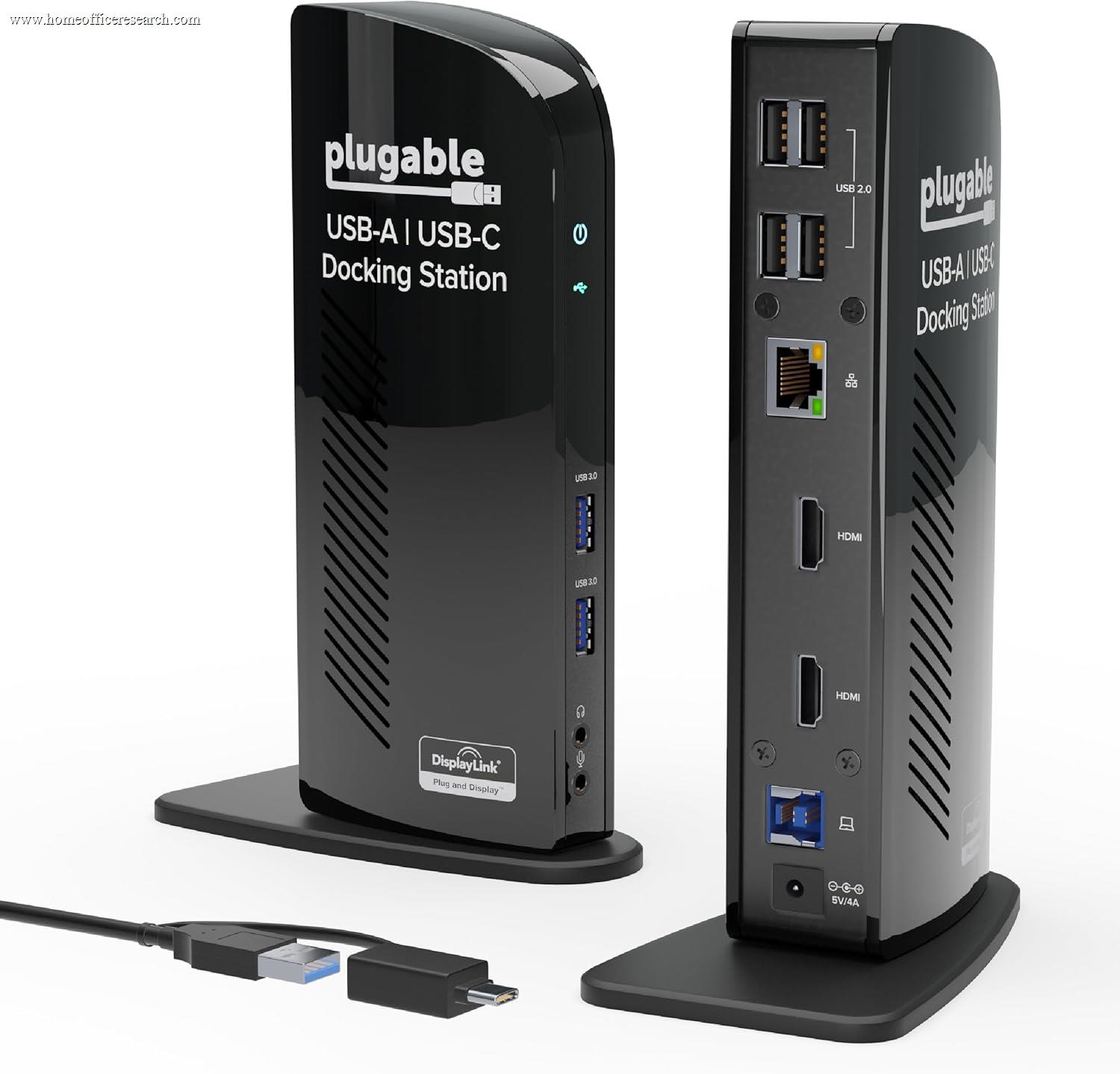
|
4.1/10 |
USB-A (DL) | 2 | 2K@60Hz | — | — | 6 | 1GbE |
| 18 |
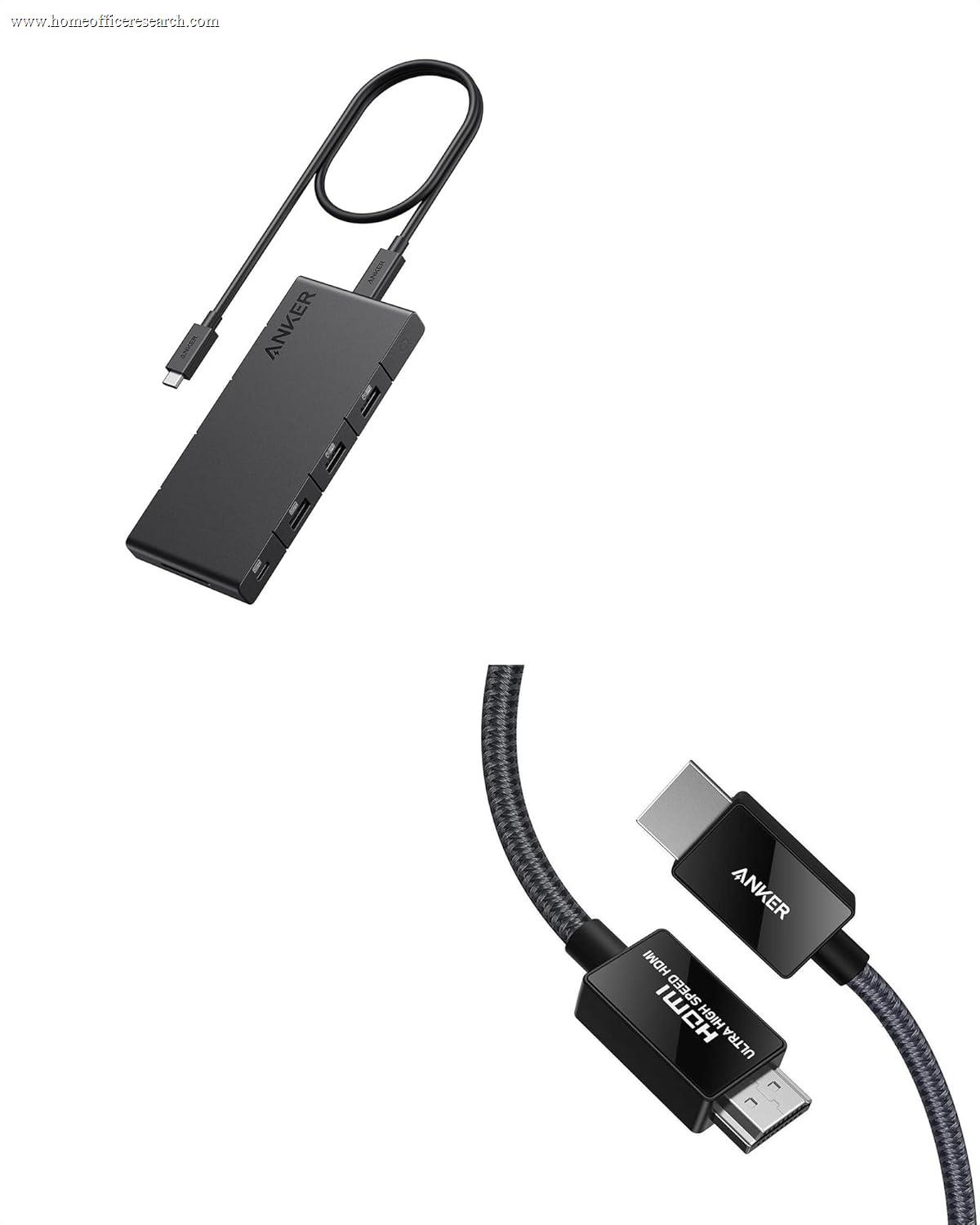
|
3.8/10 |
USB-C Alt Mode | 1 | 4K@30Hz | ✓ | 65W | 4 | — |
How We Score
Weighted Scoring Framework — All Scores 0–10
Key Considerations When Choosing a Docking Station
Connection Standard — The Most Important Decision
The host connection type determines everything downstream: maximum bandwidth, display count, charging wattage, and whether drivers are required. Get this wrong and no amount of ports saves you.
Thunderbolt 4 provides 40Gbps of bidirectional bandwidth and is Intel-certified — the gold standard for home office docks. It supports dual 4K@60Hz displays, high-speed storage, and up to 100W of laptop charging, all simultaneously, all driverless. Thunderbolt 4 is backwards compatible with Thunderbolt 3, USB 4, and USB-C devices at reduced capability.
USB-C (Alt Mode) is the broadest category. Most modern laptops with a USB-C port support DisplayPort Alternate Mode, which allows native video output. A USB-C dock running at 10Gbps (USB 3.2 Gen 2) handles one or two external displays alongside data and charging — but bandwidth is shared across everything. Quality varies enormously by dock chipset and laptop implementation.
DisplayLink is a software-based video technology that compresses display data and sends it over USB. This allows docks to drive dual 4K monitors regardless of the laptop’s native display limitations — including Apple M1/M2/M3 base chips that are normally restricted to one external screen. The tradeoff: drivers must be installed, macOS requires screen recording permission for the driver to function, and DisplayLink is unsuitable for gaming or hardware-accelerated video applications.
Bottom line: For a Thunderbolt-equipped laptop, a Thunderbolt 4 dock is the best long-term investment. For M1/M2/M3 MacBook Air users who need dual monitors, a DisplayLink dock solves the hardware limitation that a Thunderbolt dock cannot.
Display Output — Resolution, Refresh Rate, and Extended vs. Mirrored
Not all display support is equal. The number that matters is how many extended displays a dock can drive on your specific laptop — not just the total outputs on the dock.
Resolution and refresh rate interact in important ways. 4K@30Hz is noticeably less smooth than 4K@60Hz for everyday cursor movement and scrolling, even without video playback. When comparing docks, treat 4K@60Hz as the minimum acceptable standard for a primary monitor. Many USB-C docks only achieve 4K@30Hz — particularly with HDMI 1.4 outputs — so verify the specific port’s spec, not just the headline resolution.
Apple silicon limitations are a recurring friction point. MacBook Air and entry-level MacBook Pro models running M1, M2, or M3 chips support only one external display natively via Thunderbolt. A Thunderbolt 4 dock does not change this. DisplayLink is the primary practical solution for dual-monitor setups on these machines. The M1 Pro, M1 Max, and subsequent Pro/Max/Ultra chips support dual displays natively.
MST (Multi-Stream Transport) is a technology that allows multiple displays to branch from a single DisplayPort connection. It works well on Windows but is not supported by macOS at all — a significant constraint for Mac users evaluating docks that rely on MST for multi-display output.
Bottom line: Always check dual-display compatibility against your specific laptop model and chip generation, not just the dock’s maximum supported count. Apple silicon base chip laptops require DisplayLink for dual extended displays regardless of dock quality.
Power Delivery — Charging Your Laptop Through the Dock
One of the core benefits of a good docking station is eliminating your laptop’s proprietary charger — connecting a single cable handles power, data, and display. The dock’s Power Delivery (PD) rating determines whether this works cleanly.
Most 13-inch ultrabooks require 45–65W. Most 15–16-inch performance laptops and MacBook Pros require 67–96W. If your dock delivers less than your laptop’s requirement, the laptop may charge slowly, not at all, or drain during intensive tasks. A dock rated at 100W provides headroom for virtually any laptop.
A less-discussed issue is power delivery under load. Some docks advertise 96W charging but include an underpowered AC adapter that cannot sustain that figure when all ports are occupied. CalDigit’s TS4 is explicitly designed to maintain its 98W delivery regardless of connected device count — a distinction that matters in real use.
Note also that a dock’s total power supply wattage must cover both laptop charging and all connected device charging simultaneously. A dock with a 135W supply rated for 90W laptop charging leaves only 45W for peripherals — often more than enough, but worth checking for power-hungry setups.
Bottom line: For most home office laptops, 85–100W PD is sufficient. Prioritize docks with adequately sized power supplies that can sustain rated wattage under full load.
USB Port Speed and Configuration
Total USB port count is a marketing figure. What matters is the speed tier of each port and how they share bandwidth with the rest of the dock.
USB 3.2 Gen 2 (10Gbps) is the appropriate standard for external SSDs and fast storage. A dock that offers 5Gbps or 480Mbps ports for “fast” peripherals is misrepresenting its capability. Always check the individual port speeds, not just the headline port count. Many docks include a mix — a few fast ports alongside legacy 480Mbps ports intended for keyboards and mice.
Thunderbolt 4 downstream ports provide 40Gbps per port, enabling connection to Thunderbolt-compatible SSDs, displays, and other docks. A dock with three downstream Thunderbolt 4 ports (like the CalDigit TS4) substantially expands what can be connected compared to a dock with only one or none.
On a Thunderbolt 4 dock, all USB-C and USB-A data ports share the remaining bandwidth after display and host connection bandwidth has been allocated. On USB-C docks, this constraint is more acute. The practical implication: transferring large files to multiple storage devices simultaneously will be slower on a USB-C dock than a Thunderbolt dock.
Bottom line: For home office use with external storage, a minimum of two 10Gbps USB-A ports is a meaningful baseline. Check individual port specs carefully — not all USB-A ports on a given dock are equal.
Ethernet — Wired Connectivity in a Wi-Fi World
Most modern laptops omit a dedicated Ethernet port. A docking station that adds wired connectivity is a meaningful quality-of-life upgrade for home offices where Wi-Fi reliability is uneven or where video conferencing demands consistent bandwidth.
Gigabit Ethernet (1GbE) has been the consumer standard for years and is adequate for virtually all home internet connections, cloud applications, and video calls. The 1Gbps ceiling is higher than most home broadband connections.
2.5 Gigabit Ethernet (2.5GbE) is increasingly available on premium docks (notably the CalDigit TS4) and is 2.5× faster than standard gigabit. It is most relevant for users with 2.5GbE-capable routers or NAS devices, where local network transfers benefit from the additional headroom. Over-the-internet connections see no benefit, as home broadband rarely exceeds 1Gbps.
Bottom line: Any dock with Gigabit Ethernet satisfies home office needs. 2.5GbE is a genuine advantage only for local high-speed network transfers. Don’t pay a premium solely for 2.5GbE unless your router and NAS support it.
Mac vs. Windows Compatibility — Critical Differences
Docking stations behave meaningfully differently across operating systems, and many product pages obscure this with carefully worded footnotes. Apple silicon Macs in particular have display output limitations that affect dock selection.
Apple M1/M2/M3 base chips (MacBook Air, entry-level MacBook Pro) natively support only one external display. No Thunderbolt 4 dock changes this. Options are: (1) use a DisplayLink dock, which routes display data over USB via software driver; (2) use a Thunderbolt dock alongside the laptop’s own screen for a dual-display setup (laptop screen + one external); (3) upgrade to an M-series Pro or Max chip, which supports two or more external displays natively.
macOS does not support MST (Multi-Stream Transport). Docks that drive multiple displays via daisy-chained DisplayPort connections will not work in extended mode on a Mac — only mirroring. This eliminates some otherwise capable Windows-oriented multi-display configurations.
Windows laptops generally have fewer display limitations but vary by CPU and Thunderbolt implementation. Some Windows laptops with AMD CPUs lack Thunderbolt 3/4 entirely, which limits them to USB-C Alt Mode even with a Thunderbolt dock connected.
Bottom line: Before purchasing, identify your laptop’s chip, its Thunderbolt version (if any), and the maximum number of external displays it natively supports. These three data points determine which dock categories are actually compatible with your setup.
DisplayLink — Capability, Tradeoffs, and When to Use It
DisplayLink is a technology developed by Synaptics that enables video output over a standard USB connection — bypassing the laptop’s native display limitations entirely. It works by compressing the display image in software and decompressing it at the dock.
The advantages are significant for certain users: DisplayLink docks can drive dual 4K monitors on Apple M1/M2/M3 base chip MacBooks, on Chromebooks, and on older USB-A laptops that otherwise lack display output entirely. Compatibility is very broad.
The tradeoffs are equally real. DisplayLink requires a driver download; macOS requires granting screen recording permission to the DisplayLink Manager app (a requirement of the OS, not recording content). DisplayLink is not recommended for gaming, 3D rendering, or hardware-accelerated video applications because it processes display data through the CPU rather than the GPU. HDCP-protected content (streaming services, Blu-ray) may not play correctly on DisplayLink-connected monitors on macOS.
For office productivity — spreadsheets, writing, video calls, browser-based applications — DisplayLink performs well and is largely indistinguishable from native output at 4K@60Hz.
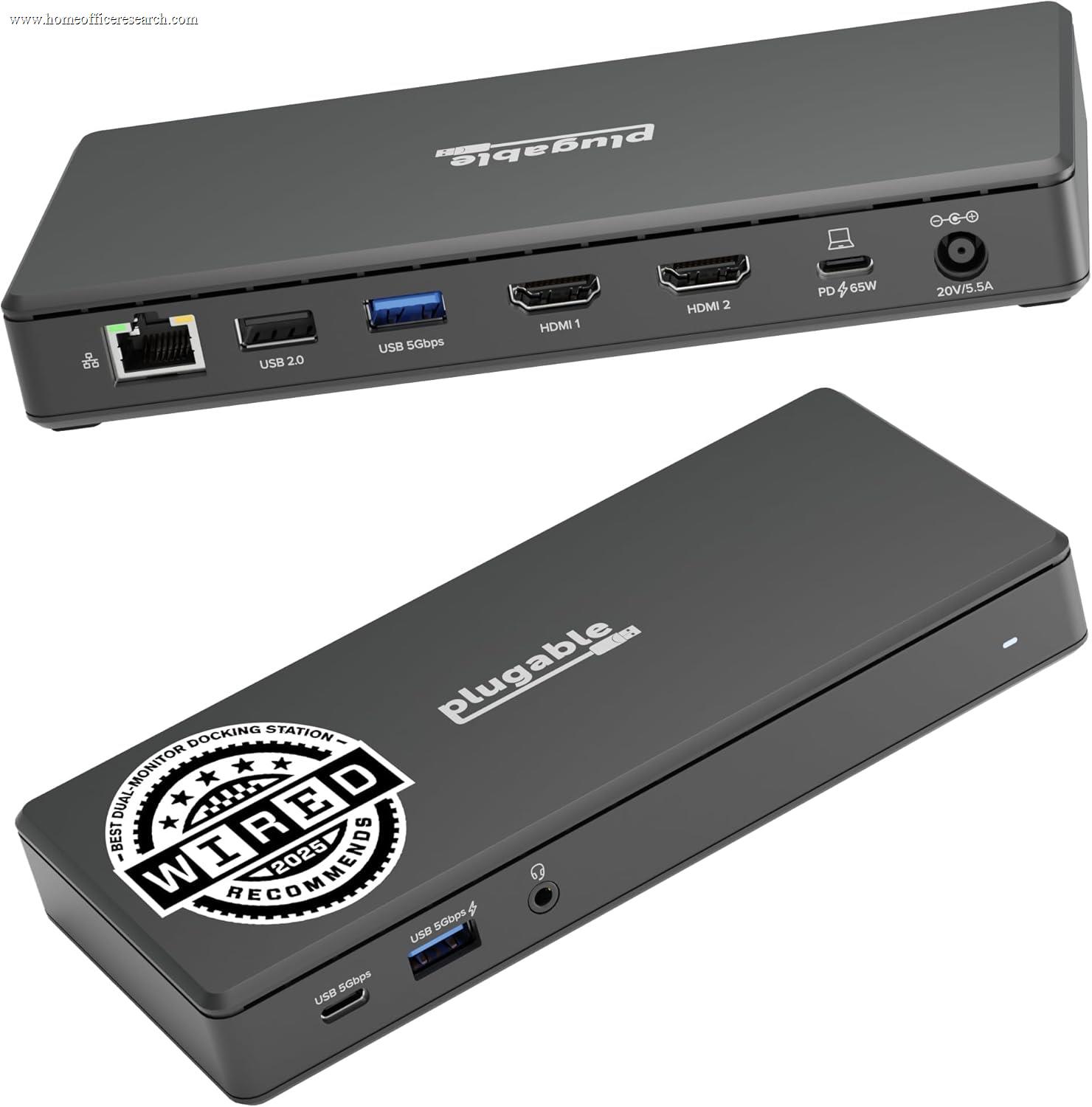
Bottom line: DisplayLink is the right choice specifically when native display limitations must be bypassed. It is not a preferred alternative to Thunderbolt for users who don’t face those limitations. Plugable is the most transparently documented and reliably supported DisplayLink dock vendor in the consumer space.
Build Quality & Thermal Design
Docking stations pass significant amounts of power and data continuously. Build quality and thermal management affect long-term reliability, not just aesthetics.
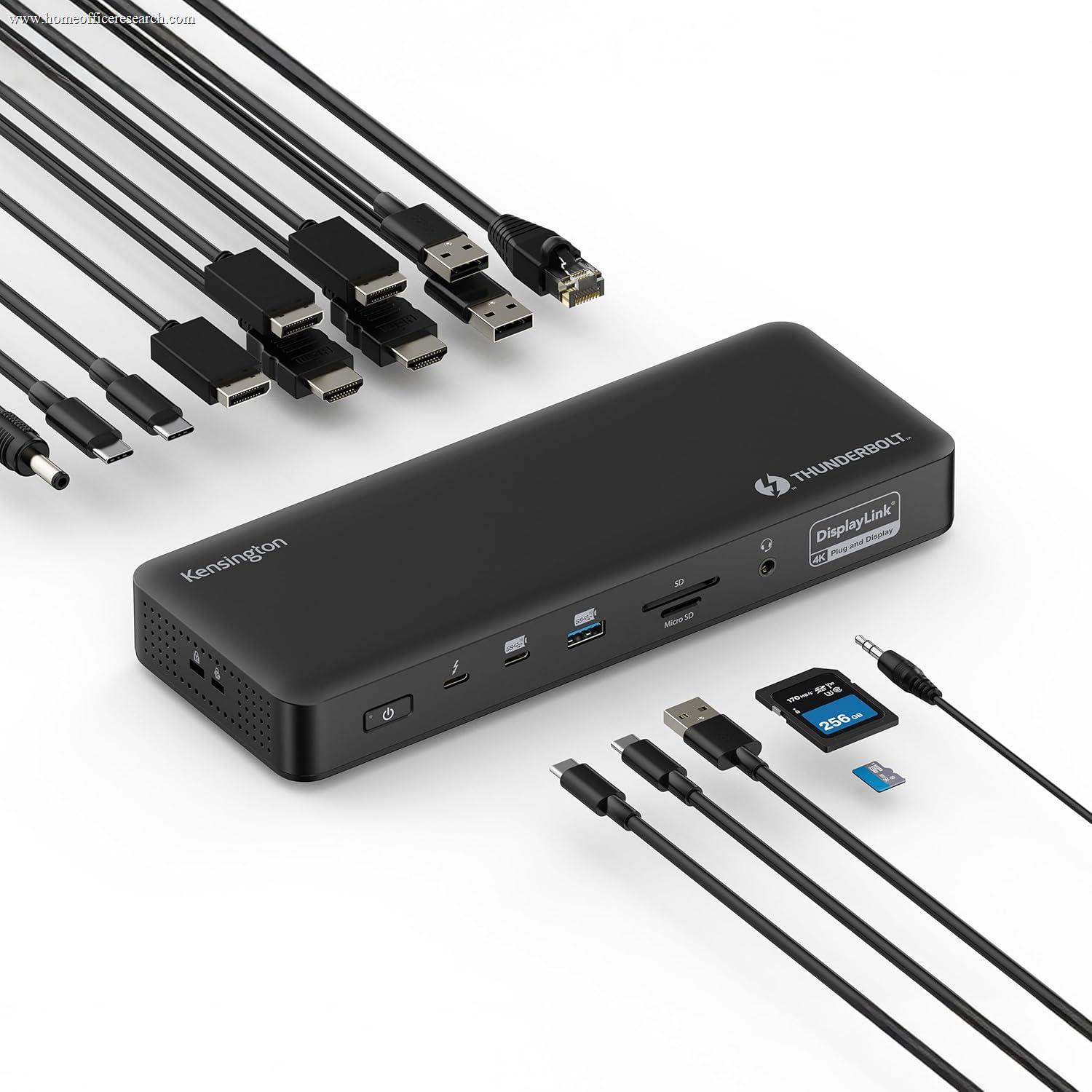
Premium docks from CalDigit, OWC, and Kensington use aluminum enclosures, which dissipate heat more effectively than plastic. CalDigit’s TS4 features a ribbed aluminum exterior specifically designed for passive heat dissipation — enabling operation without a fan in most desktop environments.
Port placement matters for cable management. Docks that position all permanent connections (Ethernet, power, displays) at the rear and frequently-used ports (USB-A, headphone jack, card readers) at the front provide a cleaner desk setup. The CalDigit TS4 is consistently praised for this distinction; the Kensington SD5700T places the host Thunderbolt 4 port at the front — a minor ergonomic frustration on an otherwise excellent dock.
Bottom line: Aluminum construction, passive cooling, and thoughtful front/rear port separation are meaningful quality differentiators for a device that will sit on your desk running 8+ hours daily.
Warranty & Manufacturer Support
A docking station is an infrastructure device, not a consumable. A three-year warranty meaningfully increases the expected useful life of the investment.
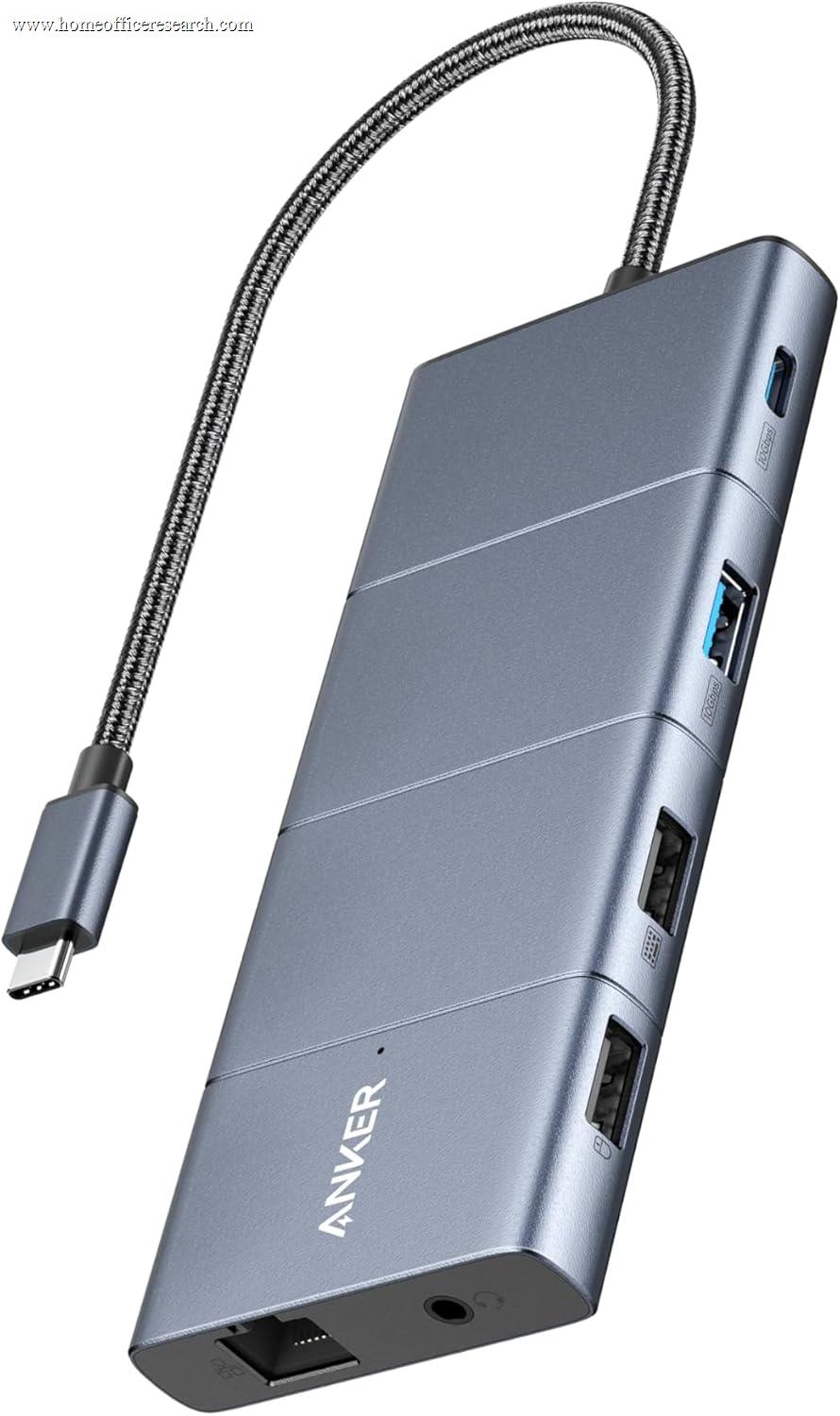
Kensington offers a three-year warranty on its SD5700T, which is above the industry norm of 18 months to two years. CalDigit and OWC both offer two-year coverage. Anker typically provides 18 months. In any category with complex driver and firmware interactions, a longer warranty paired with an established support organization is genuinely worth a premium.
Firmware update availability is also underrated. Docking station firmware affects USB hub stability, power delivery behavior, and display output consistency. CalDigit and Plugable both maintain active firmware update pipelines for their docks — a meaningful advantage over brands that ship-and-forget.
Bottom line: Factor warranty length and firmware support into total cost of ownership. For a device used daily, a three-year warranty effectively eliminates re-purchase risk over a typical equipment cycle.
Why We Primarily Recommend CalDigit, Kensington, and Plugable
After evaluating a wide range of docking station manufacturers, three brands consistently demonstrated the combination of electrical reliability, specification transparency, driver quality, and long-term support infrastructure we require: CalDigit, Kensington, and Plugable.
The broader market includes many competent options from Anker, OWC, Belkin, and others. We include several in this comparison and recommend specific models where the price-to-performance case is strong. But as a system, CalDigit, Kensington, and Plugable most consistently offer the combination of specification accuracy, firmware upkeep, and product longevity that home office infrastructure demands.
CalDigit
CalDigit is the reference-standard Thunderbolt dock manufacturer. The TS line has anchored professional Mac and Windows setups for over a decade. CalDigit provides detailed compatibility matrices, maintains active firmware updates, and engineered the TS4’s power delivery to be genuinely sustained — not just peak-rated. The premium pricing is real; so is the quality.
Kensington
Kensington’s strength is enterprise-grade reliability paired with consumer-accessible pricing. The SD5700T features a three-year warranty, sturdy aluminum construction, and physical security lock slots. Its specifications are conservatively stated and consistently delivered. For users who prioritize long-term reliability over maximum port count, Kensington is a strong alternative to CalDigit.
Plugable
Plugable’s value is transparent documentation and genuinely excellent DisplayLink implementation. No other consumer brand is as thorough about communicating compatibility caveats, macOS display limitations, and driver requirements. For users whose laptop architecture requires DisplayLink for dual-monitor support, Plugable’s UD-6950PDH is the most clearly documented and reliably supported option available.
Anker
Anker occupies a competitive middle ground: strong pricing, solid build quality, and broad compatibility. The 778 TB4 dock offers 100W PD and triple display capability at a lower price than CalDigit. Some Mac users face compatibility friction with the 778’s display configuration, and the 18-month warranty is shorter than competitors — but for a Windows-primary workflow, Anker delivers genuine value.