Best Portable SSD for Home Office:
Rated & Ranked
We evaluated 15 external SSDs across six weighted categories built for how a home office actually uses portable storage — fast backups, working files on the go, and keeping that data safe. Every score is derived from measurable specifications and aggregated reliability data, not brand preference. The result: a defensible, comparable 0–10 rating spanning everyday USB drives, high-speed 20 Gbps drives, and pro-grade USB4 and Thunderbolt 5 storage.
Product links are Amazon affiliate links — purchases support this site at no cost to you.
The ranking below uses our recommended weights — the balance of factors we believe matters most for a typical home office. If your priorities differ, switch to Customize Weights and re-rank the table around what you care about.
Best for Your Situation
A single ranked list hides the fact that someone backing up a laptop and a video editor scrubbing 8K footage aren’t shopping for the same drive. Start here, then dig into the full table below.


Full Comparison — Ranked by Score Within Tier
Drives are grouped by interface speed, because that’s the first fork a buyer faces — how fast a port does your machine have, and do you need the speed? They’re scored on the same 0–10 framework and ranked within each tier. The score column is the directly comparable number across the whole table.
| # | Product | Score | Interface ? | Max Read ? | Capacity ? | Durability ? | Encryption ? |
|---|---|---|---|---|---|---|---|
| ▸ Everyday Portable — USB 3.2 Gen 2 (10 Gbps, ~1,050 MB/s): the right speed for most laptops and daily backups | |||||||
| 1 |
|
7.9/10 |
USB 3.2 Gen 2 | ~1,050 MB/s | 1–4 TB | IP65 · 3 m | AES-256 |
| 2 |
|
7.7/10 |
USB 3.2 Gen 2 | ~1,050 MB/s | 1–4 TB | IP55 · 2 m | Software |
| 3 |
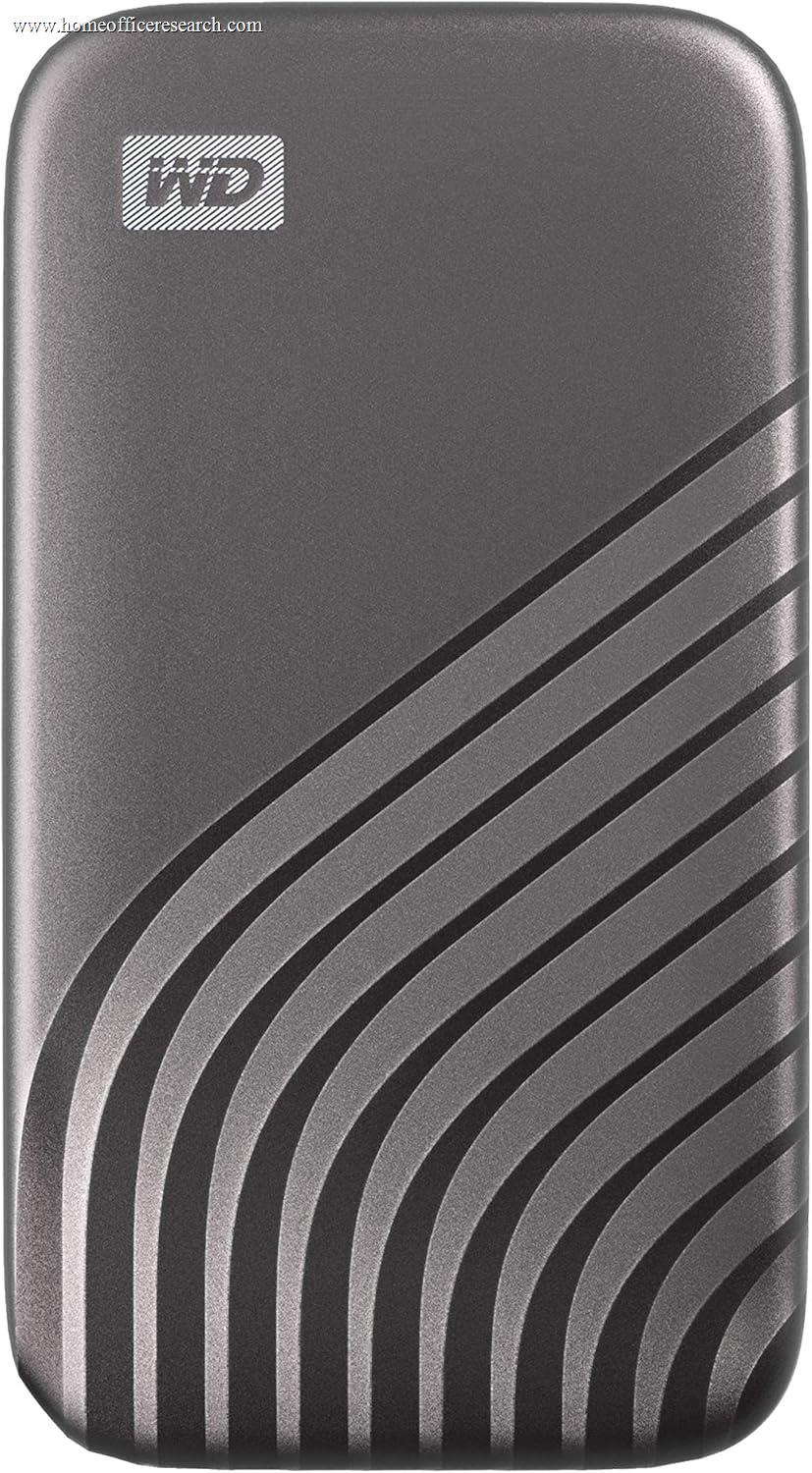
|
7.2/10 |
USB 3.2 Gen 2 | ~1,050 MB/s | 500 GB–4 TB | — | AES-256 |
| 4 |
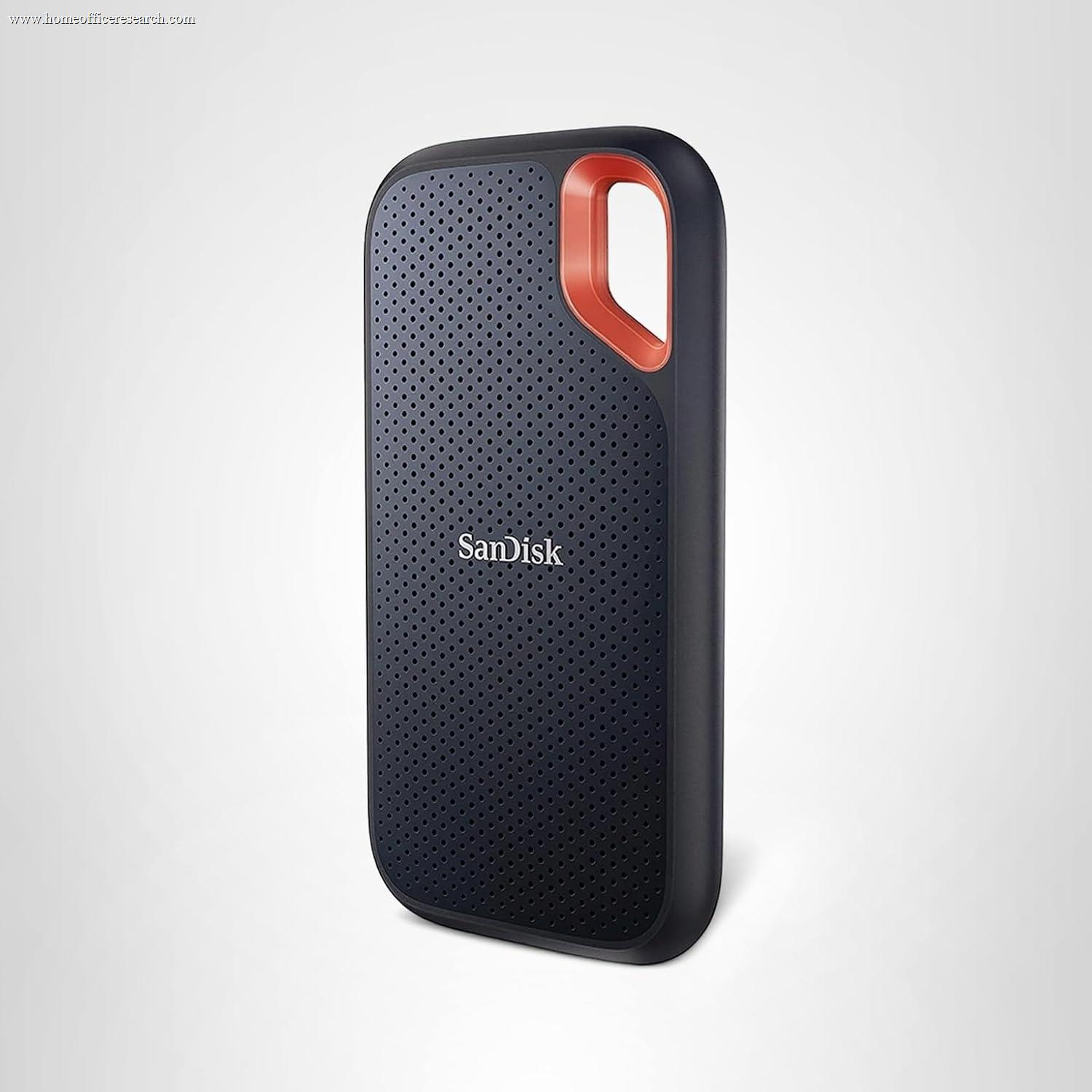
|
7.0/10 |
USB 3.2 Gen 2 | ~1,050 MB/s | 500 GB–4 TB | IP65 · 2 m | AES-256 |
| 5 |
|
6.8/10 |
USB 3.2 Gen 2 | ~1,050 MB/s | 1–2 TB | — | None |
| 6 |
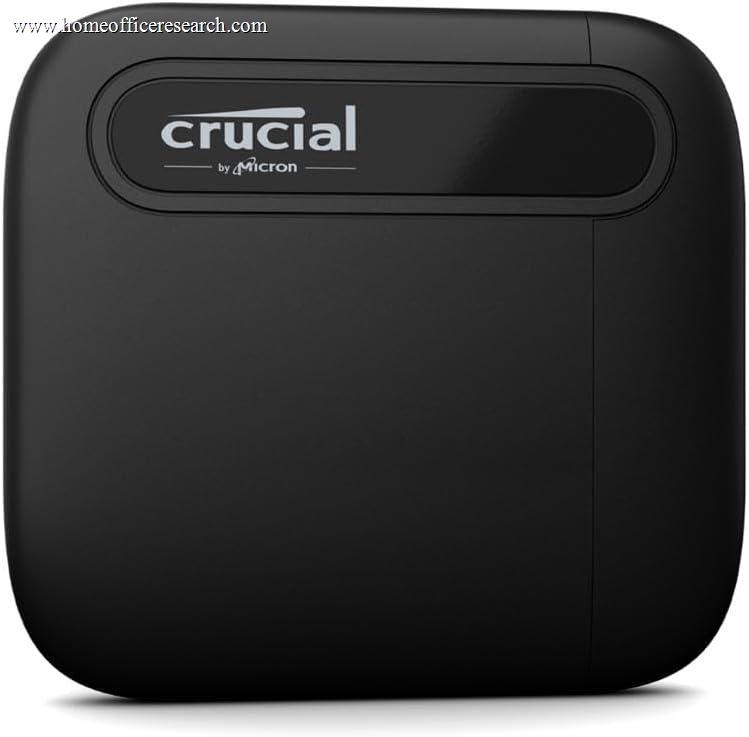
|
6.4/10 |
USB 3.2 Gen 2 | ~800 MB/s | 1–4 TB | — | Software |
| ▸ High-Speed Portable — USB 3.2 Gen 2×2 (20 Gbps, ~2,000 MB/s): twice the speed if your machine has a 20 Gbps port | |||||||
| 7 |
|
8.0/10 |
USB 3.2 Gen 2×2 | ~2,100 MB/s | 1–4 TB | IP55 · 2 m | Software |
| 8 |

|
7.6/10 |
USB 3.2 Gen 2×2 | ~2,000 MB/s | 1–4 TB | 3 m drop | AES-256 |
| 9 |
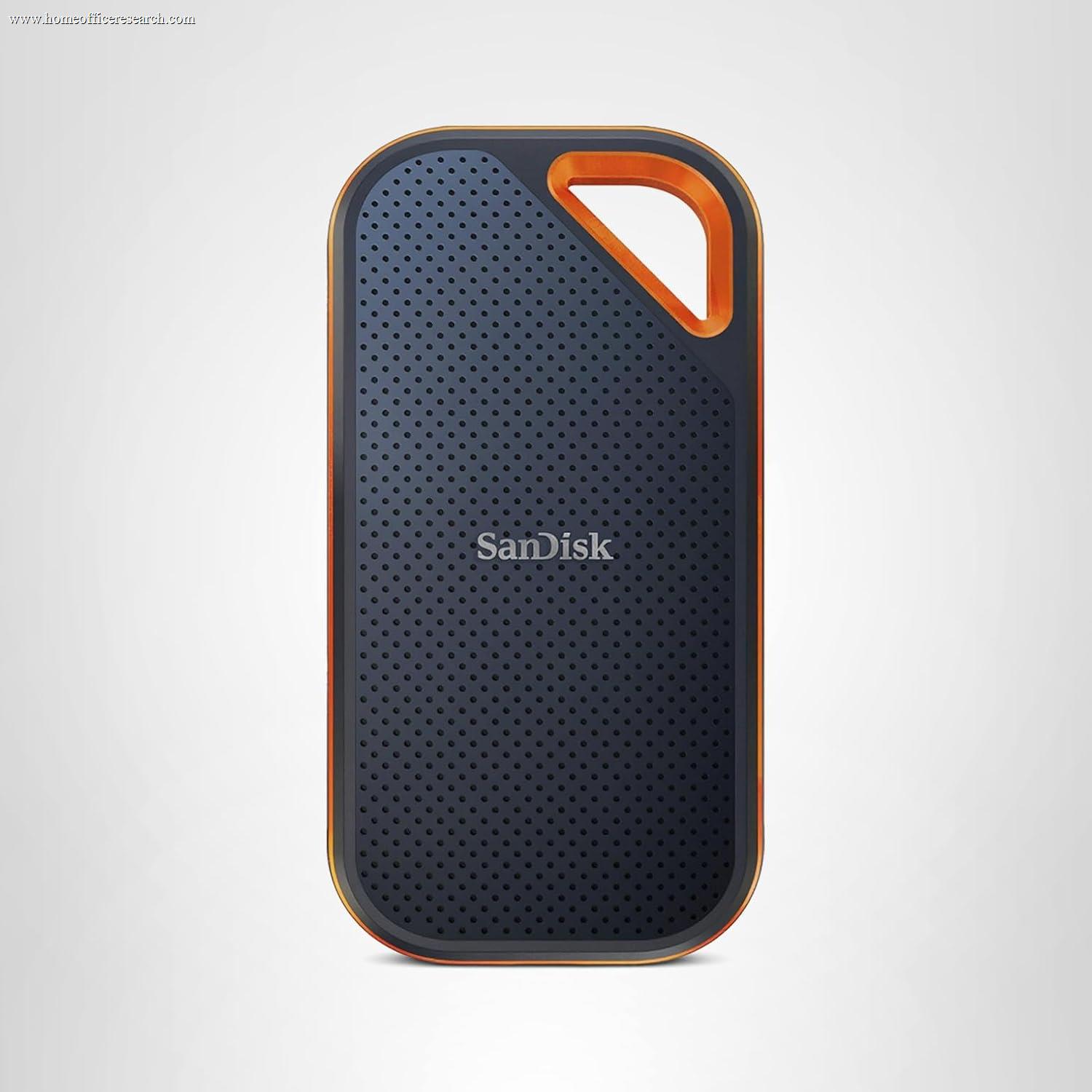
|
7.1/10 |
USB 3.2 Gen 2×2 | ~2,000 MB/s | 1–4 TB | IP65 · 2 m | AES-256 |
| 10 |

|
7.0/10 |
USB 3.2 Gen 2×2 | ~2,000 MB/s | 1–2 TB | — | None |
| 11 |
|
6.9/10 |
USB 3.2 Gen 2×2 | ~2,000 MB/s | 500 GB–4 TB | IP55 (sleeve) | None |
| ▸ Pro USB4 & Thunderbolt — 40–80 Gbps (3,000–6,700 MB/s): for editing video and large data sets straight off the drive | |||||||
| 12 |
|
8.5/10 |
Thunderbolt 5 | ~6,000 MB/s | 2–8 TB | Sealed alum. | Software |
| 13 |

|
8.3/10 |
Thunderbolt 5 | ~6,700 MB/s | 2–4 TB | IP68 · 3 m · crush | Software |
| 14 |
|
7.7/10 |
USB4 | ~3,800 MB/s | 1–4 TB | — | None |
| 15 |
|
7.1/10 |
Thunderbolt 3 | ~2,700 MB/s | 1–4 TB | IP68 · 3 m · crush | AES-256 |
How We Score
Weighted Scoring Framework — All Scores 0–10
Key Considerations When Choosing a Portable SSD
Reliability Matters as Much as Speed — Why We Weight It at the Top
The whole point of an external SSD is to hold data you care about — backups, project files, a photo or video archive. So a drive that’s blisteringly fast but occasionally drops files is worse than useless. That’s why Reliability & Endurance shares top billing with Performance in our framework, rather than chasing the biggest headline speed.
Reliability is hard to read off a spec sheet, so we score it through defensible proxies: the NAND type (TLC is more durable than QLC), whether the drive has a DRAM cache for consistent performance, the published TBW endurance rating and warranty length, controller maturity, thermal behavior, and aggregated owner-reported failure signals. This is the same show-your-work approach we use across the site — name the proxies, apply them consistently.
Bottom line: Buy the drive you can trust with the only copy you’d hate to lose — then keep a second copy anyway. A modest speed sacrifice for a proven controller and TLC NAND is almost always the right trade.
Interface Speeds — Gen 2 vs Gen 2×2 vs USB4 / Thunderbolt
The single biggest factor in what a drive feels like — and what it costs — is its interface, and the catch is that the drive only runs as fast as the slowest link. A 2,000 MB/s drive plugged into a 10 Gbps port runs at ~1,050 MB/s. A Thunderbolt 5 drive on a USB-C laptop falls back to USB speeds.
USB 3.2 Gen 2 (10 Gbps, ~1,050 MB/s) is the universal baseline — every modern laptop has it, and for backups and everyday file work it’s genuinely plenty. Gen 2×2 (20 Gbps, ~2,000 MB/s) doubles that, but Intel never built it into its chipsets, so you need a relatively recent AMD machine or an add-in card to hit full speed; otherwise it gracefully falls back to 10 Gbps. USB4 and Thunderbolt (40 Gbps) and Thunderbolt 5 (80 Gbps) are the pro lanes — only worth the premium if your computer has the port and your workflow reads and writes huge files.
Bottom line: Match the drive to the port you actually have. Check your laptop’s spec sheet first — paying for Thunderbolt 5 speed you can’t access is the most common external-SSD mistake.
Peak vs Sustained Speed — The Number Manufacturers Don’t Advertise
The big number on the box is the peak sequential read, hit briefly under ideal conditions. The number that matters for real work is the sustained write — how fast the drive keeps going once you copy more than a few dozen gigabytes.
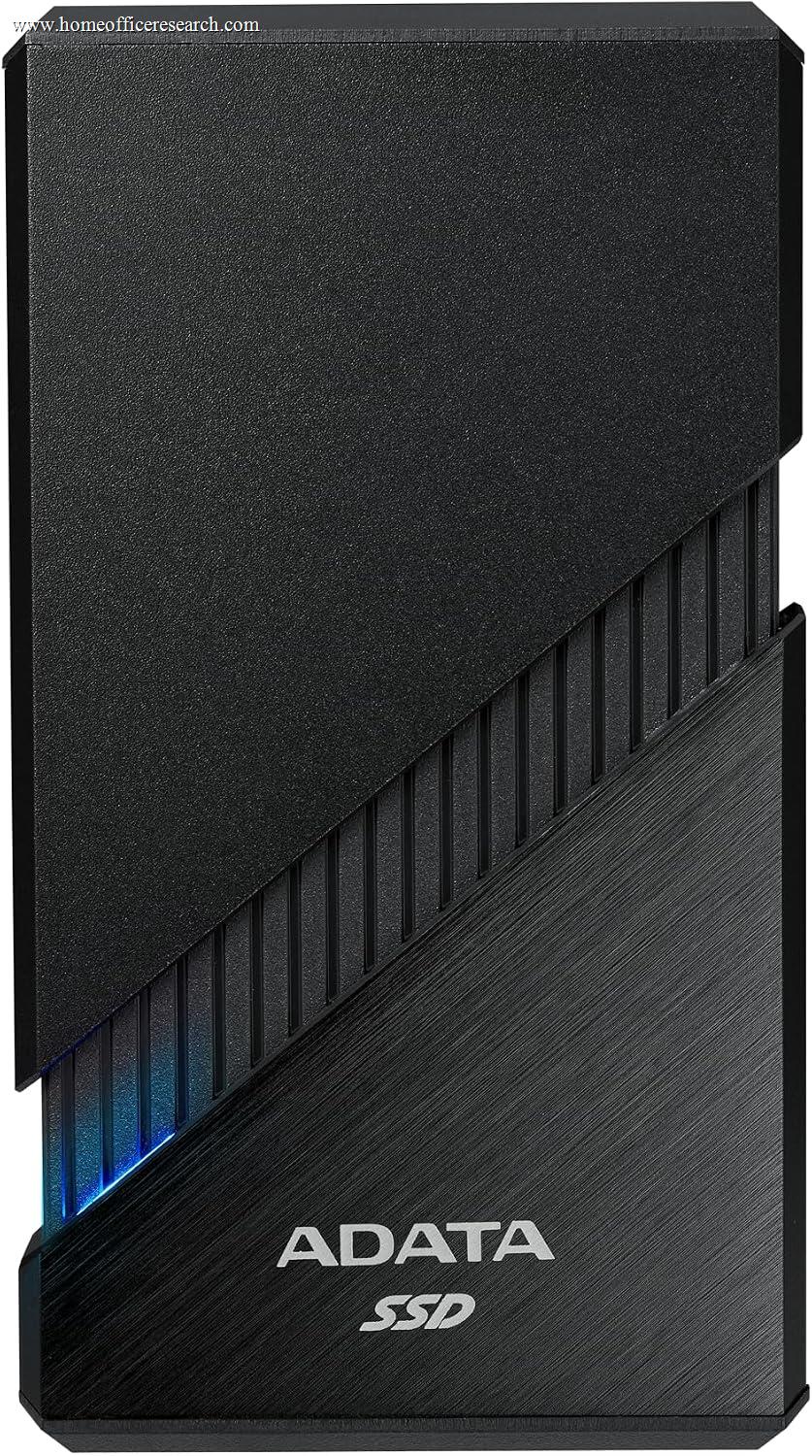
Here’s why it drops: most drives reserve a fast SLC cache that absorbs the first chunk of a transfer at full speed. When that cache fills — say, dumping a card of 4K footage or a large game library — the drive falls back to writing directly to slower TLC or QLC NAND, and speed can fall by half or more. Heat makes it worse: a small fanless drive will thermally throttle during a long export. This is exactly where build quality and NAND choice earn their keep, and why the ADATA SE920’s built-in fan and the metal-bodied premium drives hold their speed where pocket-sized budget drives sag.
Bottom line: If you routinely move large files, weigh sustained write speed over peak read. A drive that holds 1,500 MB/s all day beats one that spikes to 2,000 and collapses to 600.
TLC vs QLC and DRAM — How to Read NAND Quality
Two under-the-hood details separate a drive that lasts from one that’s merely cheap. The first is NAND type. TLC (three bits per cell) offers better endurance and faster sustained writes; QLC (four bits per cell) packs in more capacity for less money but wears out sooner and slows down more under heavy writes. For a working drive, TLC is worth paying for; for an archive you mostly read from, QLC is a reasonable saving.
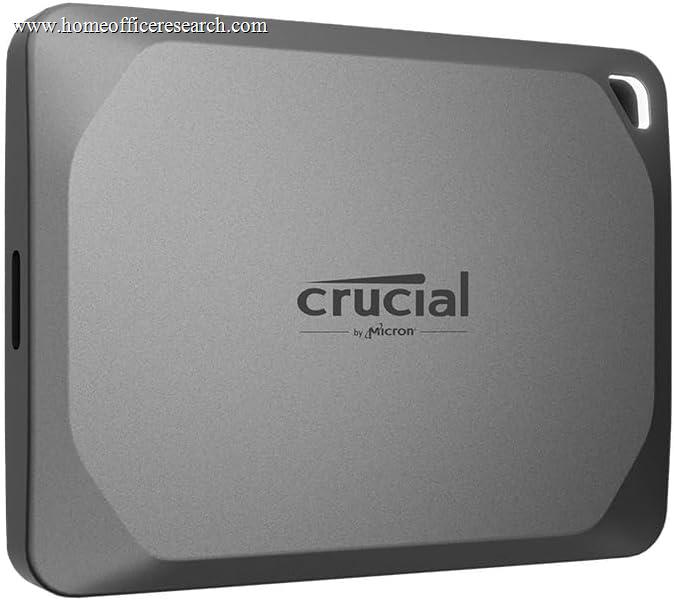
The second is the DRAM cache. Drives with dedicated DRAM keep a fast map of where data lives, which means more consistent performance and better behavior under sustained load. Many budget portable SSDs are DRAM-less to cut cost — fine for light use, less so for a drive you hammer daily. Endurance is published as TBW (terabytes written) — higher is better — and a long warranty is a useful proxy for a maker’s confidence: the Crucial X9 Pro, for instance, is backed by a five-year warranty.
Bottom line: For a drive you write to constantly, look for TLC NAND, a DRAM cache, and a high TBW rating with a five-year warranty. For a read-mostly archive, a DRAM-less QLC drive saves money with little downside.
Durability & Ruggedness — IP Ratings and Drop Protection
If your drive lives on a desk, durability barely matters. If it rides in a bag, goes on location, or sees a job site, it matters a lot — so we score it for every drive and let you weight it for your situation.
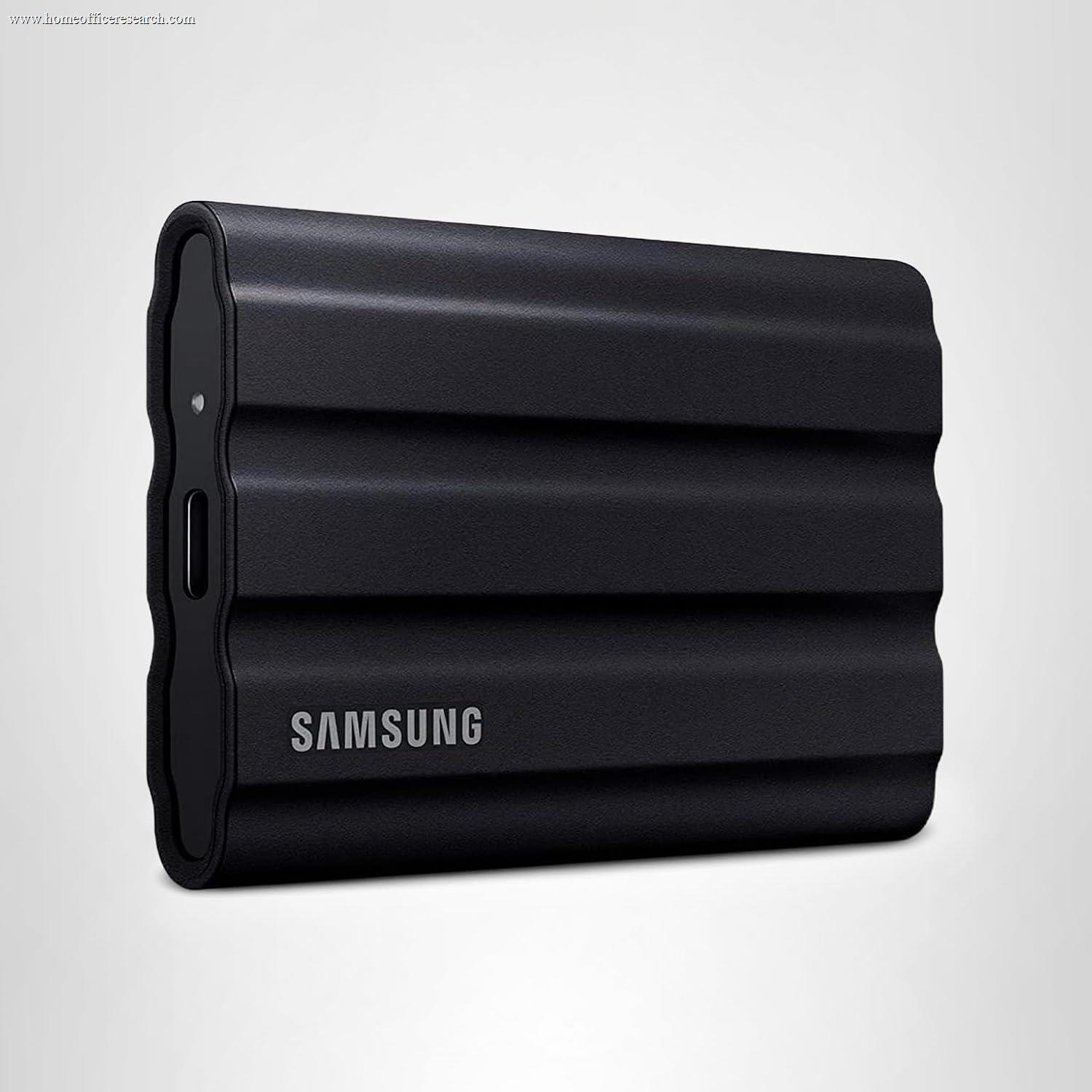
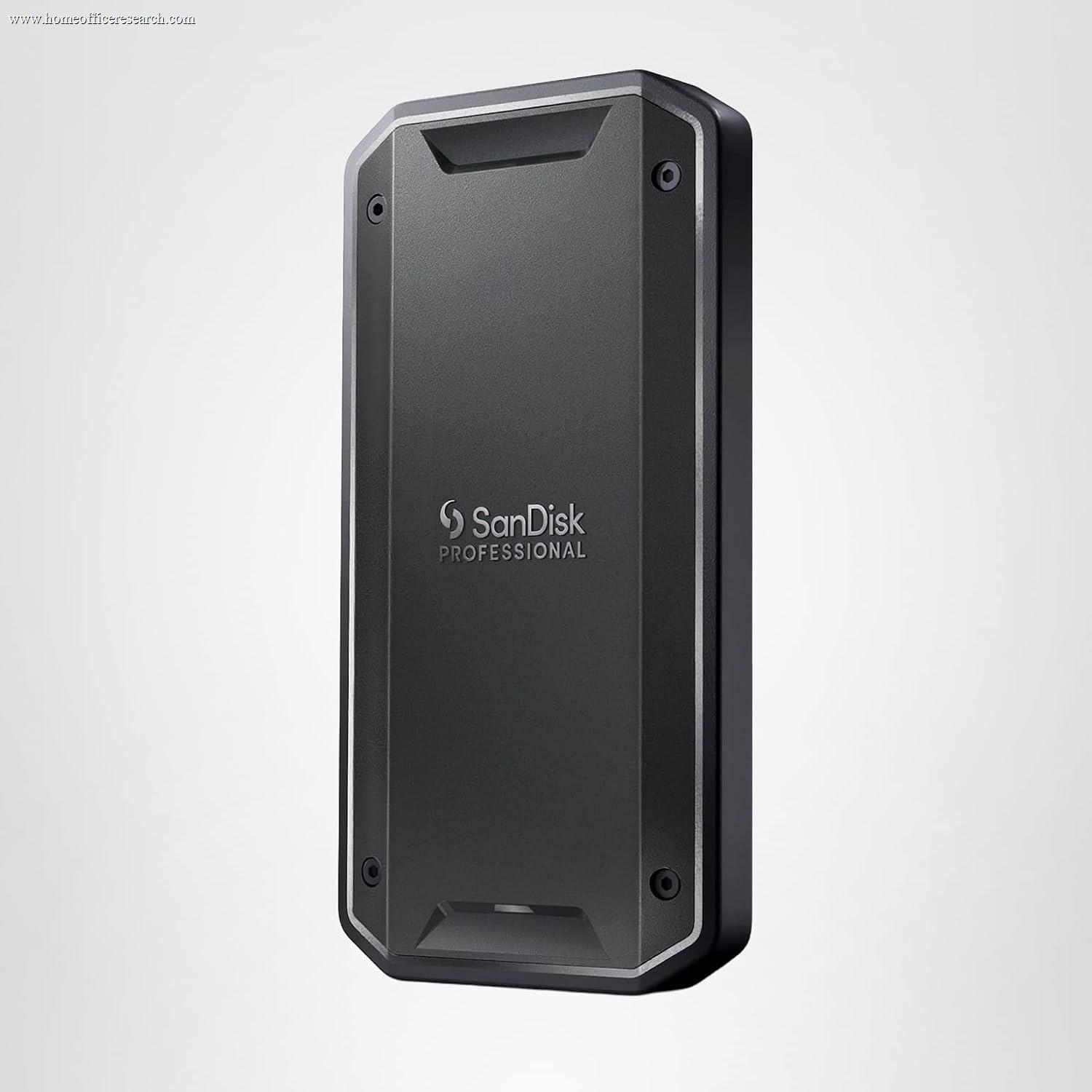
The key spec is the IP rating: the first digit is dust resistance, the second water. IP65 (Samsung T7 Shield, SanDisk Extreme) resists dust fully and low-pressure water jets; IP55 (Crucial X10 Pro) handles dust and light splashes; IP68 (LaCie Rugged SSD Pro5, SanDisk Pro-G40) adds submersion plus, on those models, a published crush rating. A drop rating (commonly 2–3 m) tells you how it survives a fall — though because SSDs have no moving parts, they’re inherently more shock-tolerant than spinning hard drives. A dash in our table means no official IP rating, not necessarily fragile.
Bottom line: Desk-bound? Don’t pay for ruggedness. Mobile or in the field? Target at least IP55, and IP65 or better if dust and water are real risks.
⚠ The 2023 SanDisk / WD Extreme Reliability Issue — What Buyers Should Know
This is worth understanding before you buy a SanDisk-branded drive. In 2023, a wave of SanDisk Extreme and Extreme Pro portable SSDs (sold by Western Digital) failed and lost user data. In May 2023, Western Digital acknowledged a firmware issue affecting certain models and released a firmware updater; a class-action lawsuit followed in the Northern District of California, alleging the drives fail and cause data loss. As of mid-2026 that case remains active and unsettled, with plaintiffs arguing the firmware update did not fully resolve the failures — a point Western Digital disputes.
What this means in practice: the affected drives are still sold and are, on paper, fast and well-built, which is why they appear in this comparison on hardware merit. But for a device whose entire job is to safeguard data, an unresolved, documented data-loss history is a legitimate reliability concern. We reflect it directly in the Reliability & Endurance score for the SanDisk Extreme, Extreme Pro, and Pro-G40, and it weighs on their overall placement accordingly — the same way we treat long-term-support risk elsewhere on the site.
To be precise about scope: the documented issue centered on the SanDisk Extreme line, not Western Digital’s separate My Passport SSD, which was not implicated in those failures and is scored on its own merits.
Bottom line: SanDisk Extreme drives remain capable hardware, and many units run flawlessly. But if you want to sidestep the uncertainty entirely, Crucial, Samsung, and OWC carry no comparable cloud — and you should keep a second backup regardless of brand.
Encryption & Backup — Protecting Work Data
A portable drive is, by design, easy to lose — which makes encryption a real consideration for anyone carrying work files. Some drives include hardware AES-256 encryption (Samsung T7 Shield/T9, WD My Passport, SanDisk Extreme), letting you lock the drive with a password independent of your computer. Others leave it to software — your operating system’s BitLocker (Windows) or FileVault (Mac) encrypts any drive perfectly well, so a “Software” rating in our table is not a dealbreaker. A handful of budget drives offer no built-in option at all.
Whatever you choose, remember the cardinal rule of storage: a single drive is not a backup. An external SSD is an excellent part of a backup strategy, but the data on it should also live somewhere else — a second drive or a cloud copy. SSDs fail without the warning signs spinning hard drives give.
Bottom line: If you carry sensitive work files, enable encryption — hardware AES if the drive has it, OS-level if it doesn’t. And never let an external SSD be the only home for anything you can’t afford to lose.
Capacity & Value — How Much to Buy
Capacity is where value is won or lost. Price-per-terabyte usually improves as capacity goes up, so the 2 TB version is frequently better value than the 1 TB, and on TLC drives a larger capacity also means a larger write cache before speeds drop. Buying a size or two above today’s needs is often the smarter spend.
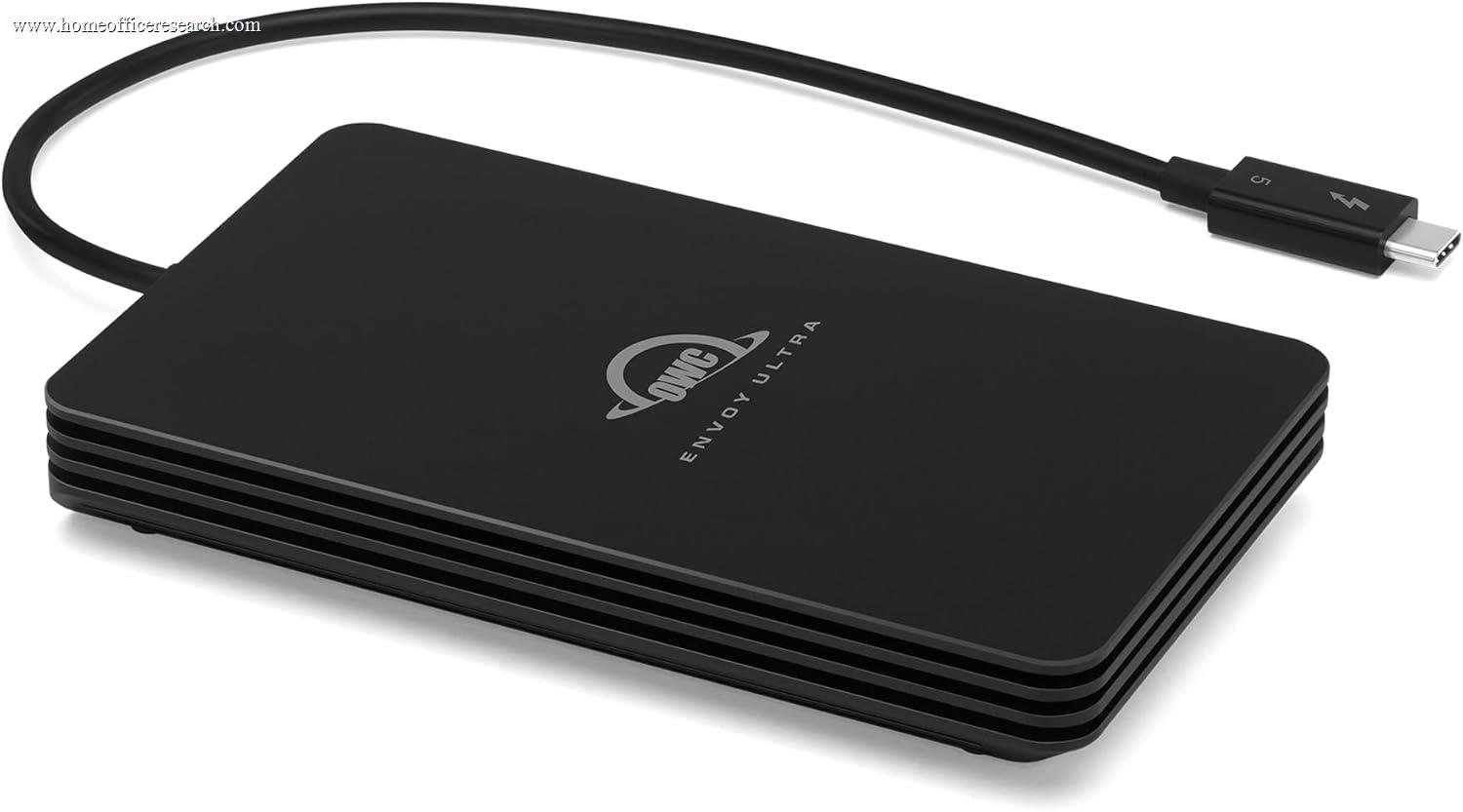
We judge value within a drive’s performance class — an everyday Gen 2 drive isn’t penalized for being slower than a Thunderbolt 5 drive, and the pro drive isn’t praised for being expensive. That’s why a budget pick like the Crucial X9 Pro and a flagship like the OWC Envoy Ultra can both score well on value: each is strong for what it is. (We don’t list prices here because they change constantly — always check current pricing on Amazon before buying.)
Bottom line: Buy a capacity ahead of your needs, favor the size with the best price-per-terabyte, and judge value against drives in the same speed class — not across the whole table.
Why We Primarily Recommend Crucial, Samsung & OWC
After weighing the field for home office use, three brands most consistently deliver the combination of dependable performance, solid endurance, and a clean reliability record that storing your work demands: Crucial, Samsung, and OWC. Each owns a different part of the range.
The broader market includes excellent hardware from Seagate/LaCie, ADATA, and Kingston, and we recommend specific models from each where the case is strong. We also include SanDisk’s drives on their hardware merits — with the reliability caveat detailed above. The three brands below are simply the safest defaults across price points.
Crucial
The value-and-reliability sweet spot. As Micron’s consumer brand, Crucial controls its own NAND, and the X9 Pro and X10 Pro pair TLC flash, strong endurance ratings, and five-year warranties with prices that undercut the big names. Our most-recommended brand for everyday and high-speed portable storage.
Samsung
The polished all-rounder. Samsung’s portable SSDs back a long track record with genuinely useful extras — hardware AES-256 encryption, the cross-platform Magician software, and the IP65-rated T7 Shield for rough use. You pay a small premium, but the T7 Shield and T9 are dependable, do-everything picks.
OWC
The professional’s choice. OWC’s storage has a strong reliability reputation among Mac creatives, and the Thunderbolt 5 Envoy Ultra is the fastest portable drive we’ve scored — a sealed, bus-powered aluminum unit built for editing video off the drive. The pick when speed and build quality outrank price.
Seagate/LaCie, ADATA, Kingston & SanDisk
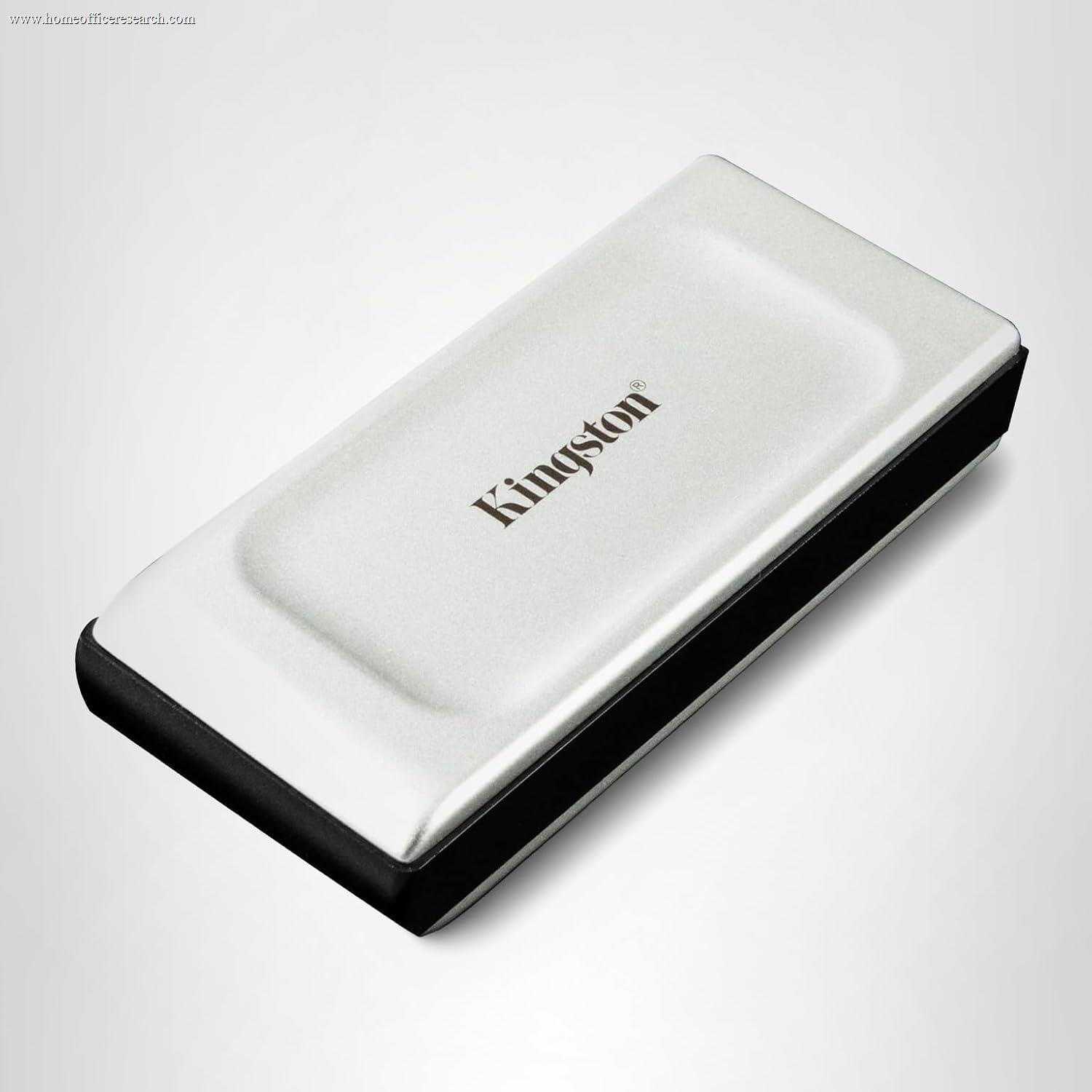
All make drives worth buying. LaCie’s Rugged SSD Pro5 is our toughest pick; ADATA’s SE920 is the best-value route into USB4; Kingston’s XS1000 is a superb budget backup drive. SanDisk’s Extreme drives are fast and rugged, but carry the 2023 reliability history above — strong buys with eyes open.