Best Monitor for Home Office:
Rated & Ranked
We evaluated 14 monitors across six weighted categories — from fundamental image quality and panel type to real-world connectivity and long-term ergonomics. Every score is derived from measurable specifications, not subjective impressions. The result: a defensible, comparable 0–10 rating for each unit, spanning entry-level to flagship — including mainstream productivity, color-critical work, ultrawide, unique-format, and Mac-ecosystem picks.
Product links are Amazon affiliate links — purchases support this site at no cost to you.
The ranking below uses our recommended weights — the balance of factors we believe matters most for a typical home office. If your priorities differ, switch to Customize Weights and re-rank the table around what you care about.
Full Comparison — Sorted by Score
| # | Product | Score | Tier ? | Panel ? | Resolution ? | Size ? | Refresh ? | USB-C / TB ? |
|---|---|---|---|---|---|---|---|---|
| ▸ S-Tier — Flagship Productivity (Score 8.5+) | ||||||||
| 1 |

|
9.1/10 |
S | IPS Black | 5K2K | 40″ | 120 Hz | TB4 · 140W |
| 2 |

|
8.9/10 |
S | IPS Black | 4K | 32″ | 120 Hz | TB4 · 140W |
| 3 |
|
8.6/10 |
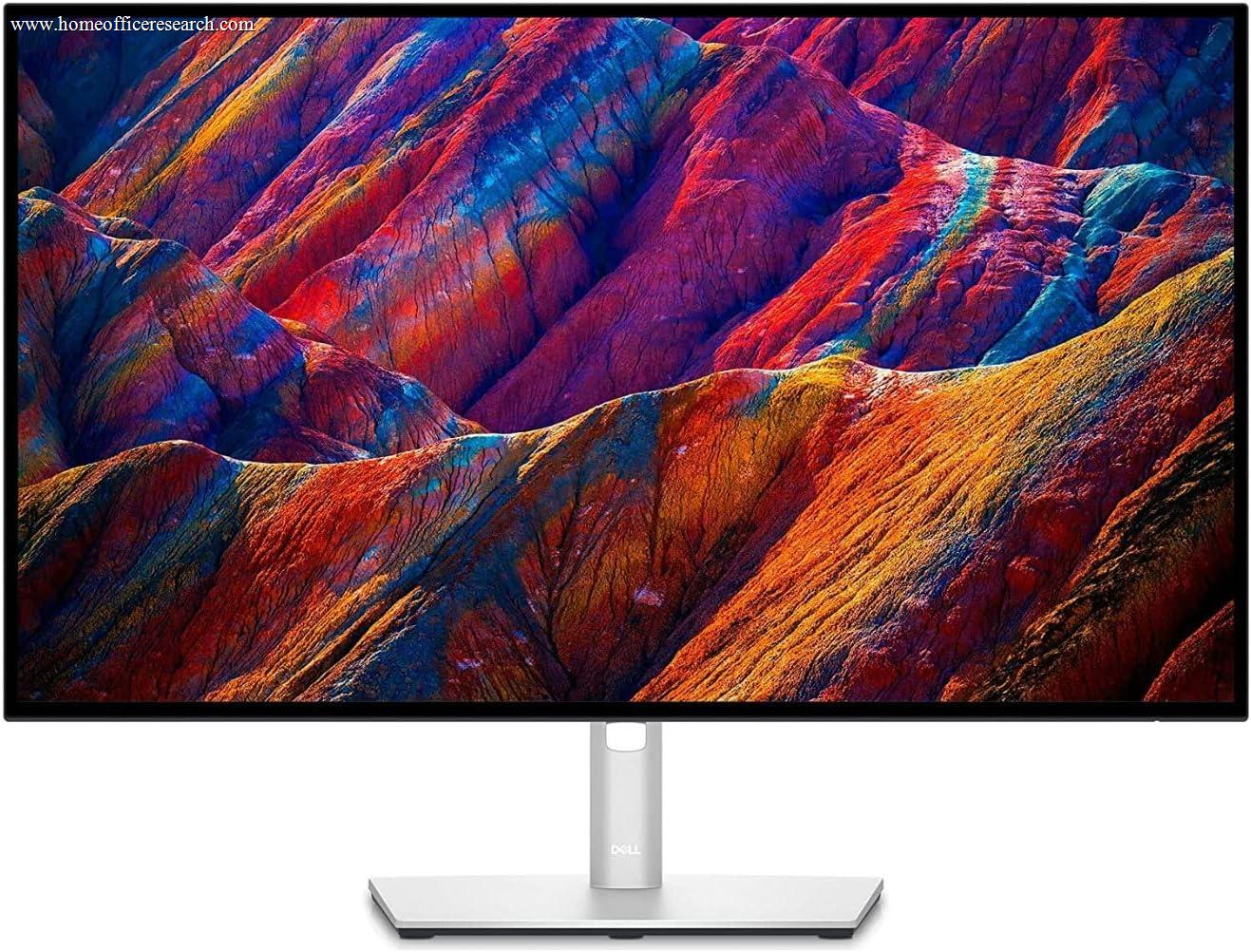
S | IPS Black | 4K | 27″ | 60 Hz | TB4 · 90W |
| 4 |
|
8.5/10 |
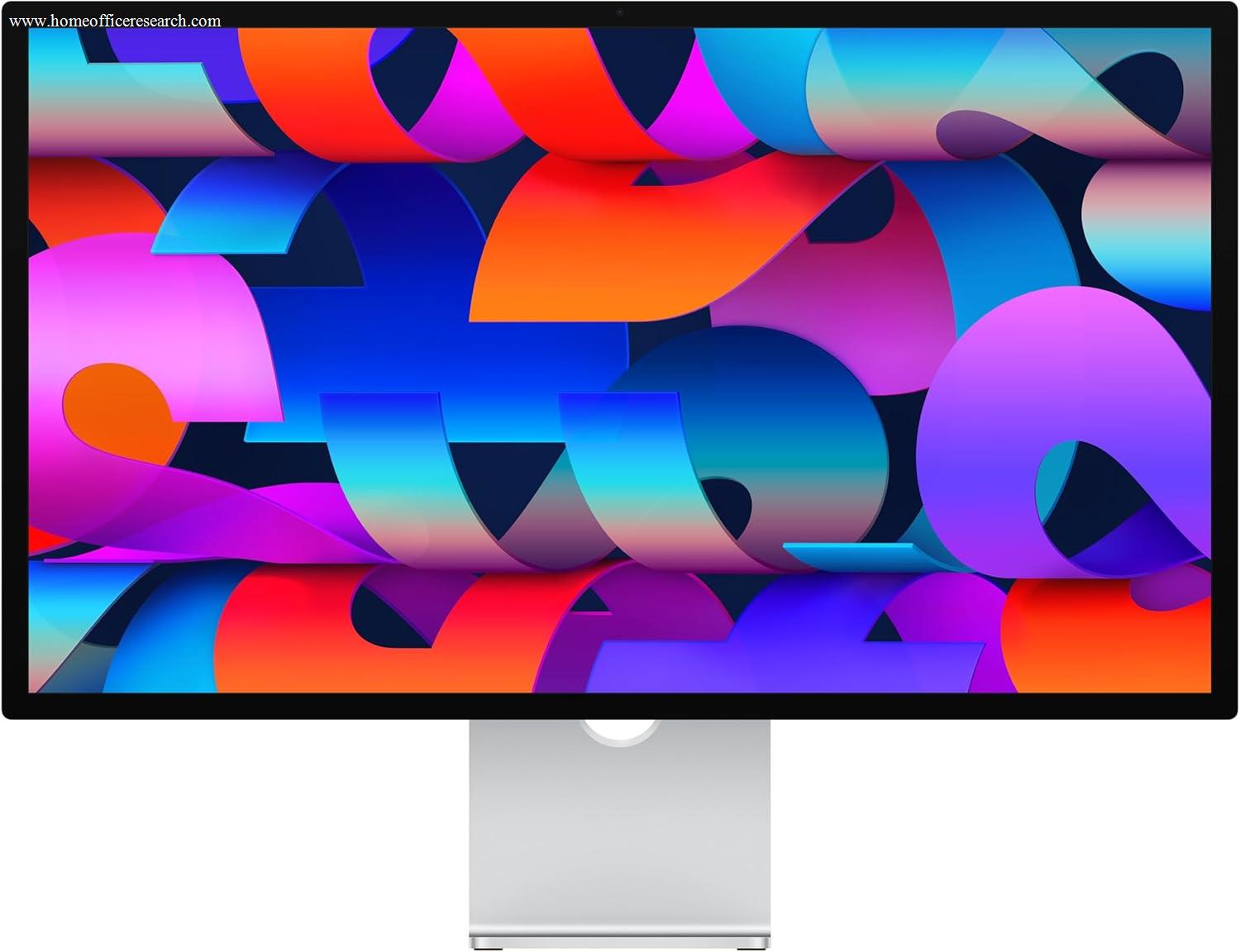
S | IPS P3 | 5K | 27″ | 60 Hz | TB5 · 96W |
| ▸ A-Tier — Strong All-Rounders (Score 7.5–8.49) | ||||||||
| 5 |
|
7.9/10 |
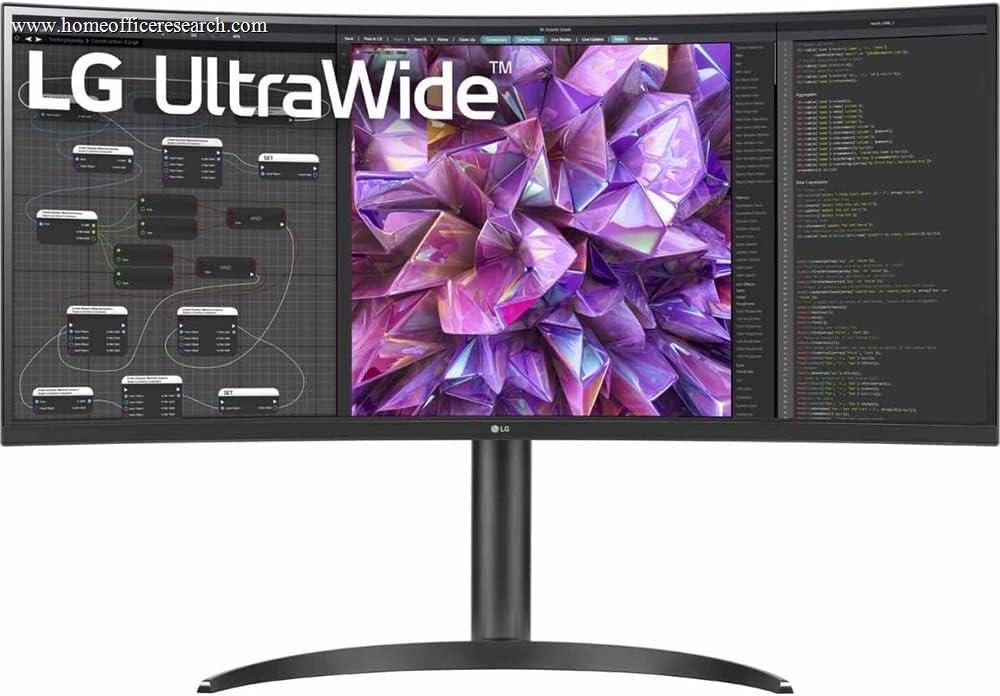
A | IPS | UWQHD | 34″ | 60 Hz | 90W PD |
| 6 |

|
7.9/10 |
A | IPS | 4K | 27″ | 60 Hz | 96W PD |
| 7 |
|
7.8/10 |
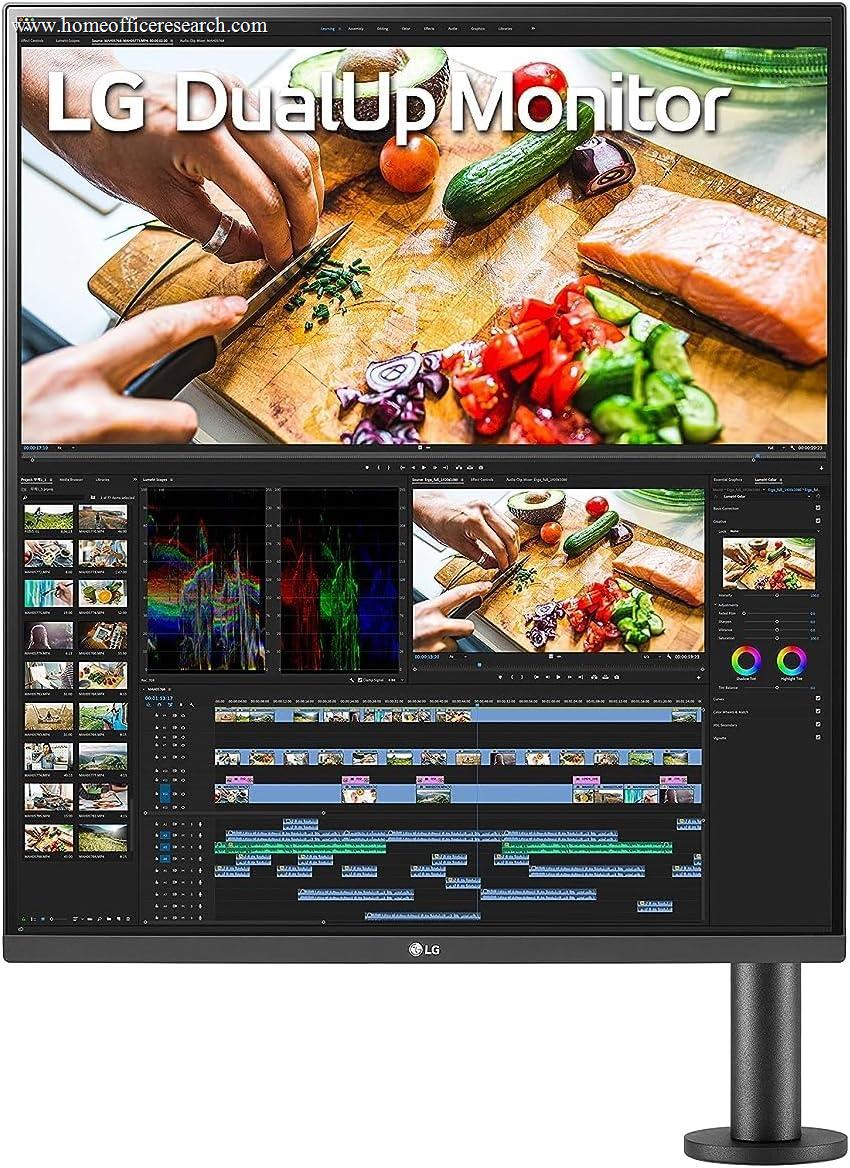
A | Nano IPS | SDQHD | 28″ | 60 Hz | 90W PD |
| 8 |

|
7.8/10 |
A | IPS | 4K | 27″ | 120 Hz | 65W PD |
| 9 |

|
7.7/10 |
A | IPS | 1440p | 27″ | 165 Hz | No USB-C |
| 10 |
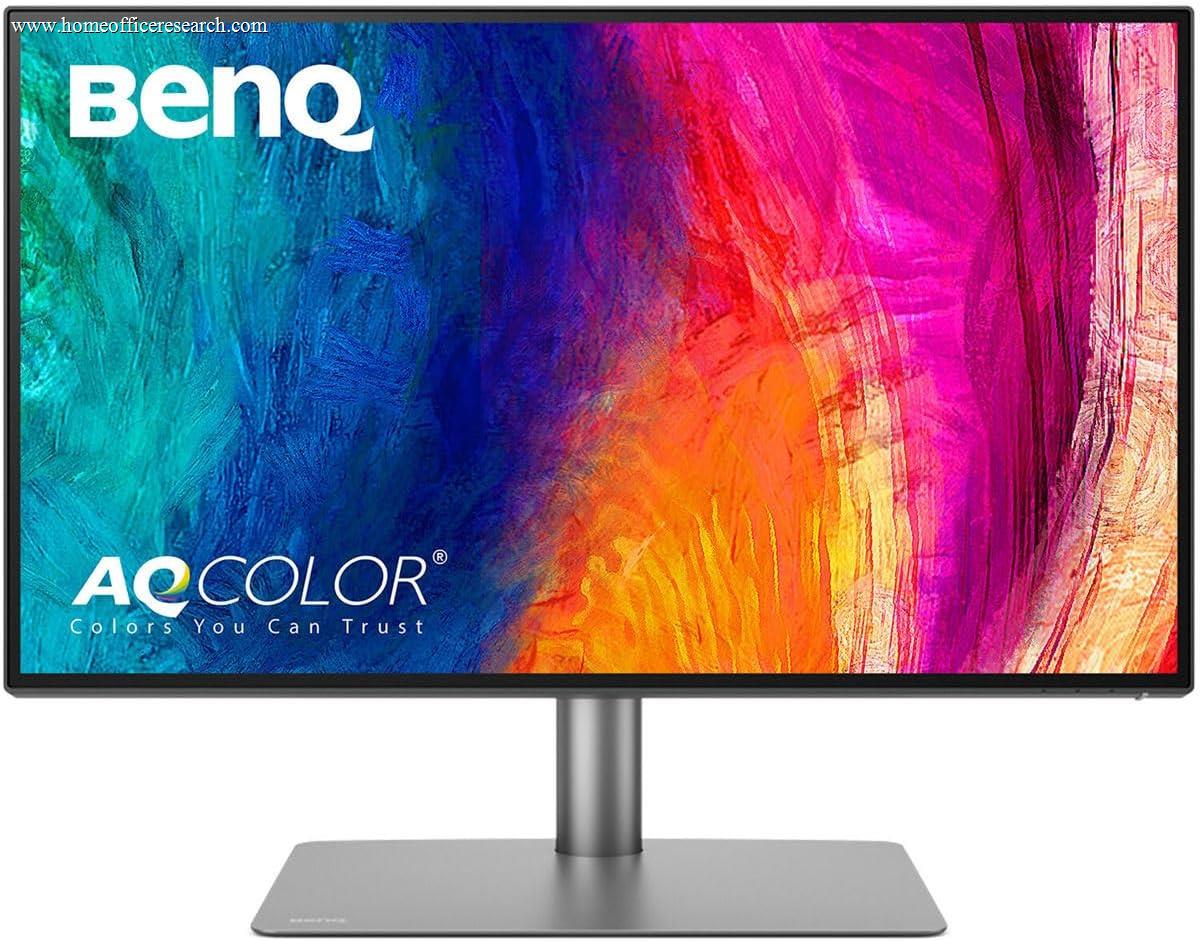
|
7.6/10 |
A | IPS | 4K | 27″ | 60 Hz | TB3 · 96W |
| ▸ B-Tier — Good with Trade-offs (Score 6.5–7.49) | ||||||||
| 11 |
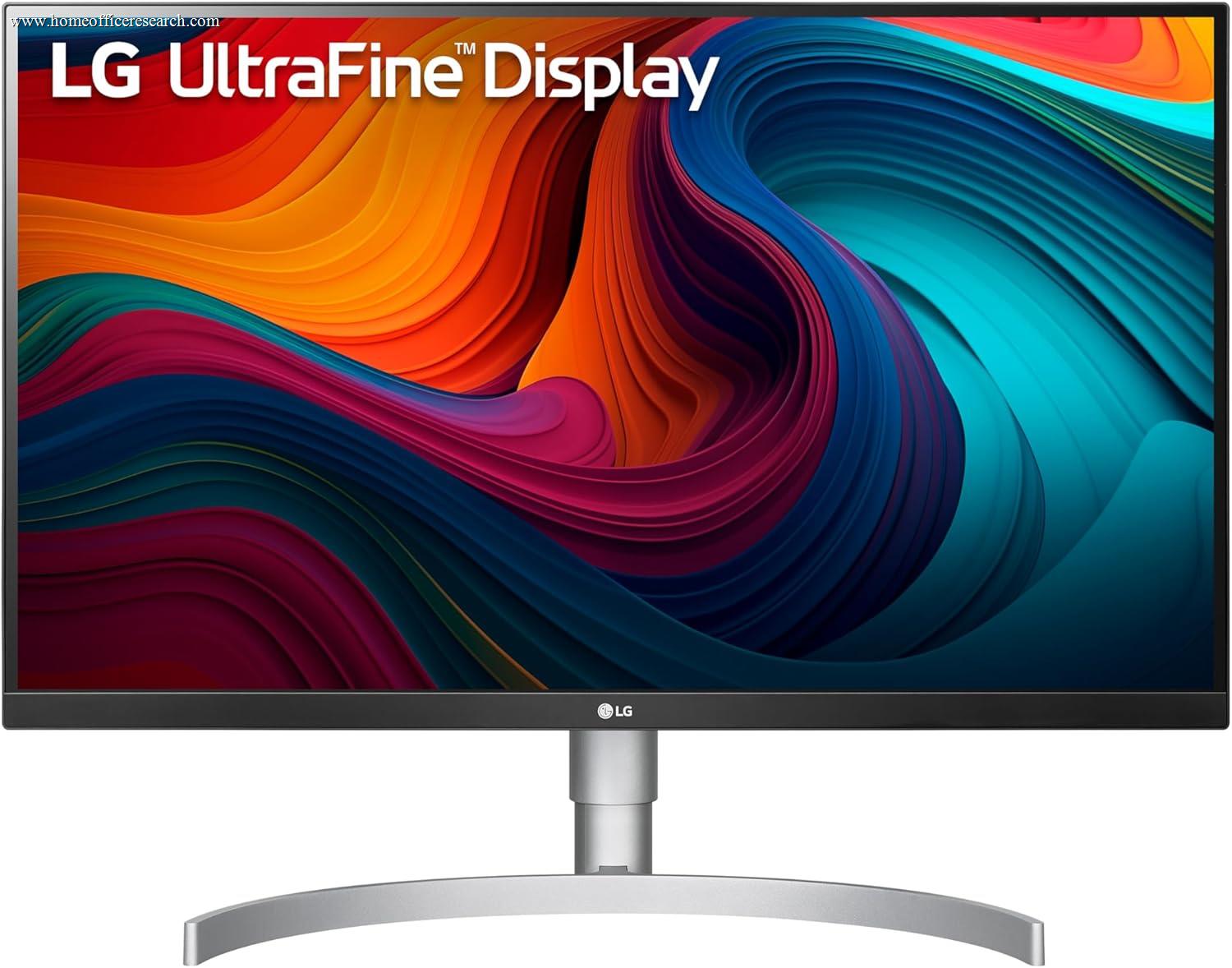
|
7.3/10 |
B | Nano IPS | 4K | 27″ | 60 Hz | 60W PD |
| 12 |

|
7.2/10 |
B | IPS | 4K | 32″ | 144 Hz | No USB-C |
| 13 |

|
7.1/10 |
B | VA | UWQHD | 34″ | 100 Hz | 65W PD |
| 14 |

|
6.6/10 |
B | IPS | 1080p | 24″ | 120 Hz | No USB-C |
How We Score
Weighted Scoring Framework — All Scores 0–10
Key Considerations When Choosing a Monitor
Panel Technology – IPS, VA, and OLED
The panel type determines the core visual experience: color accuracy, viewing angles, contrast behavior, and how the monitor looks from the side. It is the single most important specification for home office use.
IPS (In-Plane Switching) is the dominant choice for productivity work. IPS panels deliver wide viewing angles, consistent color across the screen, and accurate color reproduction. Standard IPS contrast is typically 1000:1. Dell’s “IPS Black” technology improves contrast to approximately 2000–3000:1, significantly closing the gap with VA without sacrificing IPS’s color accuracy or viewing angle advantages.
VA (Vertical Alignment) panels offer higher native contrast ratios — often 3000:1 or more — which improves perceived depth in dark content and video. The trade-off is narrower viewing angles and black smearing on fast-moving content. VA is a reasonable choice for users who prioritize contrast and watch significant video content, but is less suited to color-critical work.
OLED panels deliver perfect blacks (individual pixels turn off completely), exceptional color volume, and near-instantaneous response times. The trade-off is significantly higher cost and burn-in risk with static interface elements — a real concern in a home office where a taskbar, dock, or sidebar may display for hours at a time. Consumer OLED monitors are not evaluated in this guide due to their distinct price tier and burn-in trade-offs for home office use.
Bottom line: For most home office use, IPS — particularly IPS Black — offers the best combination of color accuracy, viewing angle consistency, and long-term usability. VA is a reasonable alternative for users who prioritize contrast and dark-room viewing.
Resolution – How Much Screen Density Do You Actually Need?
Resolution determines how sharp text and images appear, and is particularly noticeable when reading documents, reviewing spreadsheets, or working with fine UI elements.
4K (3840×2160) on a 27–32″ panel delivers exceptionally crisp text rendering. When used with HiDPI / Retina scaling, UI elements appear at native sharpness with far more detail than 1080p. For document-intensive work, the improvement over 1440p is meaningful, not merely cosmetic.
5K (5120×2880) takes pixel density a step further — most relevant on the Apple Studio Display, where 218 PPI delivers text that rivals a printed page at normal viewing distances. The benefit is most visible to macOS users working natively at 5K without scaling.
5K2K (5120×2160) is the ultrawide flagship standard, as found on the Dell U4025QW. At 40 inches, it provides the horizontal expanse of approximately 1.3 4K monitors side by side, with a pixel density sharp enough that individual pixels are effectively invisible at normal desk depth.
SDQHD (2560×2880) is the LG DualUp’s unique near-square format — equivalent to two 1440p monitors stacked vertically with no center bezel. It is the only monitor on this list taller than it is wide, uniquely suited to document work, coding, and stacked-window layouts.
1440p (2560×1440) is a strong mid-tier — noticeably sharper than 1080p at typical working distances and more affordable than 4K. A sensible choice for users who want improved clarity without a premium price, or who prioritize a high refresh rate.
1080p (1920×1080) is acceptable on a 24″ panel but begins to look soft at 27″ or larger. For a primary home office monitor used for extended periods, 1080p limits the experience in ways that become harder to ignore over time.
Bottom line: 4K is the recommended standard for a primary home office monitor in the 27–32″ range. 5K2K ultrawide and 5K reward larger budgets and specific use cases. 1440p is a solid secondary or budget option. 1080p is acceptable only at the entry level or as a secondary display.
Connectivity – The Monitor as a Dock
In a modern home office, the monitor’s connectivity profile is often as important as its display quality — particularly for laptop users. A well-connected monitor can eliminate an entire docking station from the setup.
USB-C with Power Delivery (PD) is the critical differentiator. A single USB-C cable can simultaneously carry a DisplayPort or Thunderbolt signal, pass through USB hub data, and charge the connected laptop. The wattage of the PD output matters: 65W is sufficient for most thin-and-light laptops; 90W or 140W is necessary for larger MacBook Pros or high-performance workstations to charge at full rate while in use.
Thunderbolt 4 — as found on Dell’s UltraSharp UE series and the U4025QW — adds daisy-chaining capability, higher bandwidth for multiple external displays, and guaranteed performance specifications beyond standard USB-C. For users with Thunderbolt-equipped Macs or PCs, Thunderbolt 4 ports offer the most capable and future-proof connection.
Thunderbolt 5, newly available on the Apple Studio Display (2026), doubles the bandwidth of Thunderbolt 4 and enables daisy-chaining of up to four displays from a single Mac port. For users in the Apple ecosystem with the latest M-series Macs, this is a meaningfully forward-looking feature.
Built-in USB hubs, KVM switch support, and Ethernet ports (as found on the U4025QW) further extend the monitor’s role as a centralized desk hub — reducing cable runs and simplifying multi-device setups.
Bottom line: For laptop-based home office setups, USB-C PD at 90W+ is a high-priority specification. Thunderbolt 4 or 5 is the right choice for users who want maximum connectivity, daisy-chaining, or bandwidth headroom. Connectivity is weighted at 22% in our scoring — second only to image quality — for this reason.
The Apple Studio Display – A Special Case
The Apple Studio Display occupies a unique position in this guide. It scores in the S-tier on image quality — 5K resolution at 218 PPI with P3 wide color and True Tone delivers genuinely exceptional text clarity and color rendering. It also scores extremely well on the Mac experience: a single Thunderbolt 5 cable connects and charges a MacBook, drives the display, routes peripherals through downstream USB-C ports, and enables Center Stage video calling — all without configuration.
The penalty it pays is on value and platform lock-in. At its flagship price for a 60Hz monitor with a standard IPS panel, the cost is difficult to justify on specifications alone. The 2026 refresh upgraded Thunderbolt to version 5 and improved the Center Stage webcam, but the display panel itself is unchanged from the 2022 model. Most of the premium reflects ecosystem integration, build quality, and Apple’s vertical control over the Mac display stack.
Critically, the Studio Display is functionally exclusive to Mac. Its Thunderbolt-only video input (no HDMI or DisplayPort) and macOS-controlled settings make it unsuitable for Windows or Linux systems. For Mac users who value a seamless, cable-light setup and want the best display experience Apple’s ecosystem can deliver, it earns its S-tier score. For anyone with a PC or a mixed-platform setup, it does not belong in the conversation.
Bottom line: The Studio Display is the right monitor for Mac-only home offices where tight ecosystem integration and screen density are the top priorities. It is not a cross-platform recommendation. Consider the Dell U2723QE or U3225QE for Windows setups at significantly better value-per-spec.
The LG DualUp – A Format Worth Understanding
The LG DualUp 28MQ780-B has an aspect ratio of 16:18 — essentially near-square, and the only monitor on this list taller than it is wide. The practical effect is equivalent to two 27″ 1440p monitors stacked vertically, without the bezel gap of a dual-monitor stand and without the horizontal sprawl of an ultrawide.
For specific workflows, this format is genuinely transformative. Long documents, code files, legal briefs, and research papers benefit from seeing more vertical content without scrolling. The Picture-by-Picture (PBP) and KVM features allow two computers to share the screen simultaneously, divided horizontally — each machine effectively gets a standard 1440p workspace. Color accuracy is excellent: measured Delta E below 1.0, 98% DCI-P3, with factory calibration competitive with dedicated pro monitors in its price range.
The limitations are real. At 60Hz with no Adaptive-Sync, it is strictly a productivity panel. The narrow physical width — barely wider than a 21.5″ monitor — means some applications and websites feel cramped horizontally. It is not a natural choice for video consumption or any content designed for wide formats. The included Ergo arm is excellent, but requires desk edge clamping rather than a traditional flat stand base.
Bottom line: The DualUp is a strong pick for users whose primary workflows are document-heavy, code-heavy, or multi-source (KVM). It is a niche format — but for users who fit that niche, it is among the most purposeful productivity monitors available at its price point.
Refresh Rate – Where It Matters and Where It Doesn’t
Refresh rate (measured in Hz) determines how many frames per second the monitor can display. For home office use, the impact of refresh rate is more nuanced than manufacturers’ marketing often implies.
The jump from 60Hz to 120Hz is genuinely perceptible in everyday use — not just gaming. Scrolling through long documents, animating window transitions, and cursor movement all feel noticeably smoother. This benefit extends to productivity work, and is the reason 120Hz is preferred over 60Hz in our scoring, all else being equal.
The jump from 120Hz to 165Hz or 240Hz is meaningful primarily for fast-paced gaming and largely imperceptible in productivity contexts. For a home office guide, the distinction between these higher tiers is not a significant scoring differentiator.
High refresh rates also require sufficient graphics pipeline bandwidth. Driving a 4K 120Hz display requires DisplayPort 1.4 or HDMI 2.1 — HDMI 2.0, found on many older laptops, is limited to 4K at 60Hz.
Bottom line: 60Hz is acceptable; 120Hz is a meaningful step up in day-to-day comfort. Beyond 120Hz, the productivity benefit diminishes rapidly. Refresh rate is weighted at 5% in our scoring to reflect this hierarchy.
Ergonomics – Stand Adjustability and Long-Term Health
Monitor ergonomics receive less attention than display specs, but for a device used 6–10 hours daily, stand adjustability directly affects posture, neck strain, and long-term physical comfort.
A quality ergonomic stand should offer height adjustment (typically 100–150mm of range), tilt, swivel, and pivot (portrait mode rotation). All four axes are needed for proper ergonomic fit across different desk heights, chair heights, and user postures.
VESA compatibility (75×75mm or 100×100mm) is important for users who prefer aftermarket monitor arms. The Apple Studio Display notably requires an optional height-adjustable stand or VESA adapter at additional cost — a real ergonomic limitation at its price point.
The LG DualUp’s included Ergo arm deserves special mention: it clamps to the desk edge and supports full height, tilt, swivel, pivot, and fore/aft extension — more adjustability than most monitors in its price range, in a more compact footprint than a traditional stand base.
Bottom line: Full four-axis stand adjustability and VESA compatibility should be treated as baseline requirements for any home office monitor. A monitor you can’t position correctly is a monitor working against you.
Color Accuracy – When It Matters and When It Doesn’t
Color accuracy is frequently cited in monitor specifications but is relevant at different levels depending on the work being performed.
For general productivity — documents, spreadsheets, email, web browsing, video calls — color accuracy beyond a certain threshold is imperceptible in everyday use. A monitor with Delta E below 2 and sRGB coverage above 99% is entirely sufficient and will look excellent to any non-specialist.
For photo editing, graphic design, or video color grading, color accuracy becomes a primary selection criterion. These workflows require factory calibration to known reference standards, broad color gamut coverage (DCI-P3, Adobe RGB), and ideally hardware calibration support for regular recalibration over the panel’s life. The BenQ PD2725U and ASUS PA279CRV are specifically engineered for this use case — both offer Calman Verified calibration with 99% DCI-P3 and Adobe RGB coverage, and the PA279CRV delivers this at a notably lower price than the BenQ.
Bottom line: For standard home office use, any S or A-tier monitor in our ranking provides more than sufficient color accuracy. Only pursue factory-calibrated prosumer panels if your work genuinely depends on color reference accuracy.
Size & Viewing Distance – Matching Monitor to Workspace
Monitor size must be matched to viewing distance and desk depth to be effective. A large monitor at too close a range creates excessive eye movement and neck fatigue; one too small at typical desk depth doesn’t fully utilize available workspace.
At a typical viewing distance of 24–30 inches, 27″ is the practical sweet spot for single-monitor 4K setups — large enough to use the resolution without requiring constant panning, fitting comfortably on standard desks.
32″ at 4K is ideal for users with deeper desks (30″+) or those who want a larger canvas for documents and multi-window layouts. The U3225QE earns its high ranking in part because 32″ IPS Black at 4K 120Hz represents the best convergence of size, quality, and connectivity in a single-monitor setup.
40″ ultrawide (5K2K), as in the Dell U4025QW, requires a deep desk and significant investment — but delivers a screen canvas that effectively replaces two monitors, at a resolution and quality level that justifies the footprint for power users.
Ultrawide (34″ UWQHD) suits multi-window power users with adequate desk real estate. The LG 34WQ75C delivers this format at a competitive price with genuine USB-C docking capability.
Bottom line: Match size to desk depth and use case. 27″ 4K is the reliable default. 32″ rewards deeper desks and document-intensive work. Ultrawide suits multi-window workflows. 40″ 5K2K is for users who want to eliminate the second monitor entirely.
Eye Comfort – Flicker-Free, Blue Light, and Brightness Floor
At typical home office working distances and durations, eye comfort features are meaningful — though they are often oversold through vague marketing language.
Flicker-free backlighting (DC dimming rather than PWM dimming) eliminates the rapid on-off cycling that some displays use to control brightness at lower levels. PWM flicker is imperceptible consciously but may contribute to eye fatigue over long sessions. DC-dimmed displays are preferred for extended use.
A low minimum brightness floor matters more than it might seem. In a dim evening environment, many monitors remain uncomfortably bright even at their lowest setting. A minimum brightness of 20 nits or lower allows comfortable use without relying on third-party software.
Low blue light modes are standard across most modern monitors. Hardware-level low blue light filtering is preferable to software overlays, as it avoids color distortion while still reducing exposure during extended evening sessions.
Bottom line: Flicker-free backlight and a low brightness floor are the eye comfort specifications that matter most for extended home office use. Low blue light modes are a useful secondary feature but should not be a primary selection criterion.
Why We Primarily Recommend Dell, LG, BenQ, and ASUS ProArt
After evaluating the current consumer and prosumer monitor market, four brands consistently met our standards for panel quality, specification transparency, connectivity execution, and long-term ownership reliability: Dell UltraSharp, LG, BenQ, and ASUS ProArt. Apple earns a conditional recommendation for Mac-exclusive setups.
This doesn’t mean other brands produce bad monitors — it means these consistently clear the threshold we set for defensible recommendations. Specification transparency (published Delta E, factory calibration documentation), VESA compatibility, warranty clarity, and build consistency across product lines all factor into this shortlist.
Dell UltraSharp
Dell’s UltraSharp line is the benchmark in the home office monitor category. The UE-suffix and U4025QW models combine IPS Black panels with Thunderbolt 4, factory calibration to Delta E <2, and the broadest USB hub configurations in the segment. Dell publishes detailed specifications and supports accessible part replacement throughout the product lifecycle. For home office use where connectivity and color accuracy both matter, UltraSharp sets the standard.
LG
LG’s monitor lineup delivers strong panel quality and genuine USB-C integration at competitive prices. The 34WQ75C represents excellent ultrawide value, and the DualUp is the only monitor on this list with a truly unique aspect ratio purpose-built for vertical productivity. LG also leads in ergonomic stand design, with most models offering full four-axis adjustability out of the box. The DualUp’s included Ergo arm is the best stock stand in our entire evaluation.
BenQ ProDesign
BenQ’s PD line is purpose-built for creative professionals who need color accuracy they can rely on. The PD2725U ships with a factory calibration report and supports hardware calibration via colorimeter. For home offices where design, photography, or video work is part of the daily workflow, BenQ’s commitment to color fidelity makes it a defensible choice over more generalist alternatives.
ASUS ProArt
ASUS’s ProArt line punches above its price point. The PA279CRV delivers Calman Verified 4K color accuracy with 99% DCI-P3 and 96W USB-C PD at a mid-range price — making professional-grade color performance accessible to home offices that can’t justify the BenQ’s premium. The PA278CGV adds high-refresh 1440p with factory calibration for work-and-gaming hybrid setups. Both models are consistently well-built with full ergonomic stands and daisy-chain DisplayPort output.
Apple Studio Display — Conditional Recommendation
The Studio Display earns S-tier status for Mac users who prioritize screen density, ecosystem integration, and cable simplicity. The 2026 refresh adds Thunderbolt 5 and an improved Center Stage webcam, though the display panel itself is unchanged from 2022. At its flagship price for a 60Hz monitor, the value case depends almost entirely on how much the Mac ecosystem experience is worth to you. For Windows users, there is no compelling argument for the Studio Display over comparable Dell or LG options at significantly better value-per-spec.