Best Mouse for Home Office:
Rated & Ranked
We evaluated 12 mice across every shape that matters for desk work — full-size productivity, compact travel, vertical, and thumb-operated trackball — scoring each across six weighted categories relevant to all-day use. Long-session comfort, click noise on video calls, multi-device wireless, and scroll-wheel quality all factor into every score. Every rating is derived from measurable, disclosed specifications, not subjective impressions.
Product links are Amazon affiliate links — purchases support this site at no cost to you.
The ranking below uses our recommended weights — the balance of factors we believe matters most for a typical home office. If your priorities differ, switch to Customize Weights and re-rank the table around what you care about.
Full Comparison — Sorted by Score
| # | Product | Score | Type ? | Wireless ? | Max DPI ? | Buttons ? | Quiet Clicks ? | Weight (g) ? |
|---|---|---|---|---|---|---|---|---|
| ▸ Premium — Best-in-Class Comfort, Wireless, and Scrolling | ||||||||
| 1 |
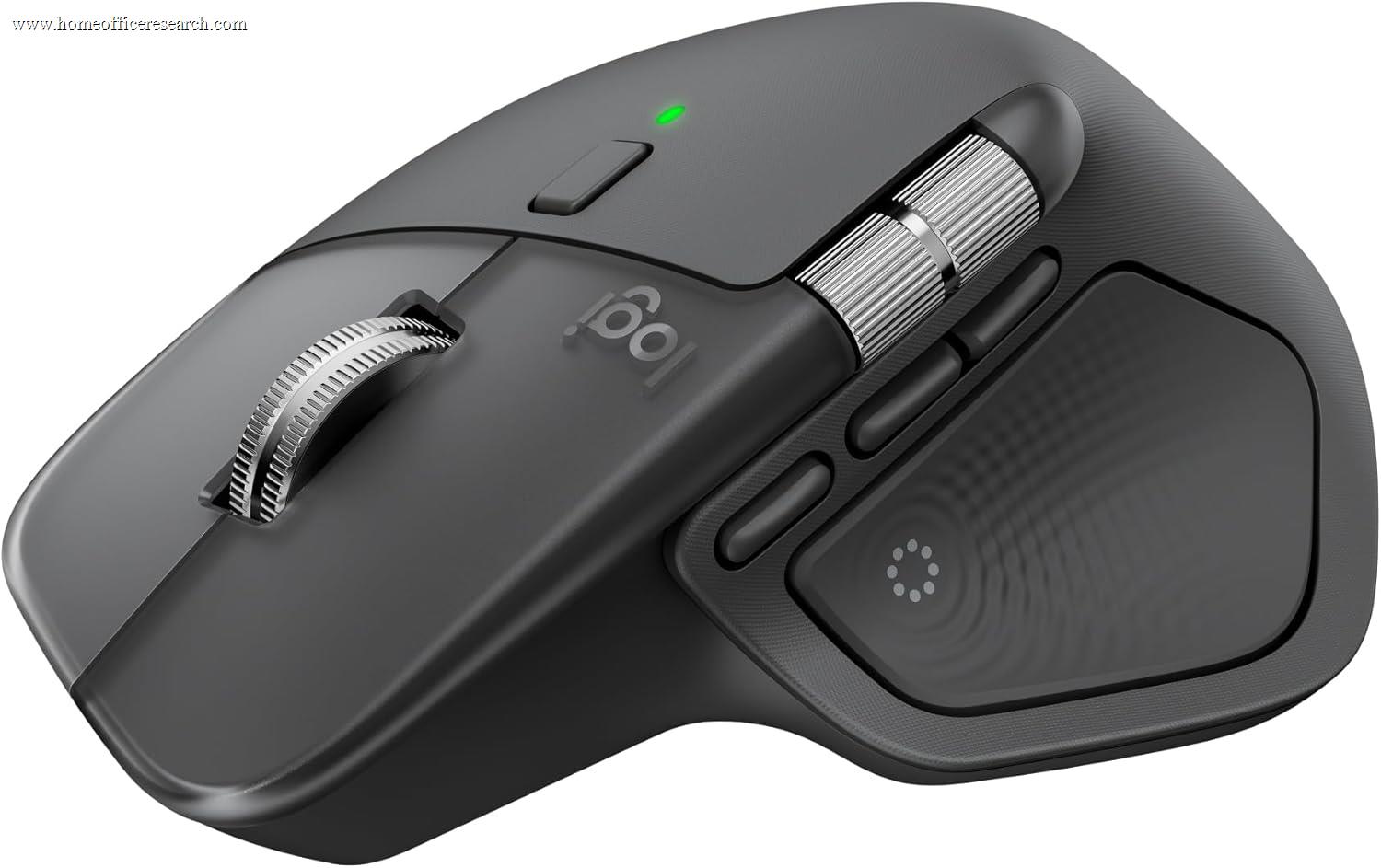
|
9.2/10 |
Productivity | BT + Bolt (3) | 8000 | 7 | ✓ | 150 |
| 2 |

|
9.0/10 |
Productivity | BT + Bolt (3) | 8000 | 7 | ✓ | 141 |
| 3 |
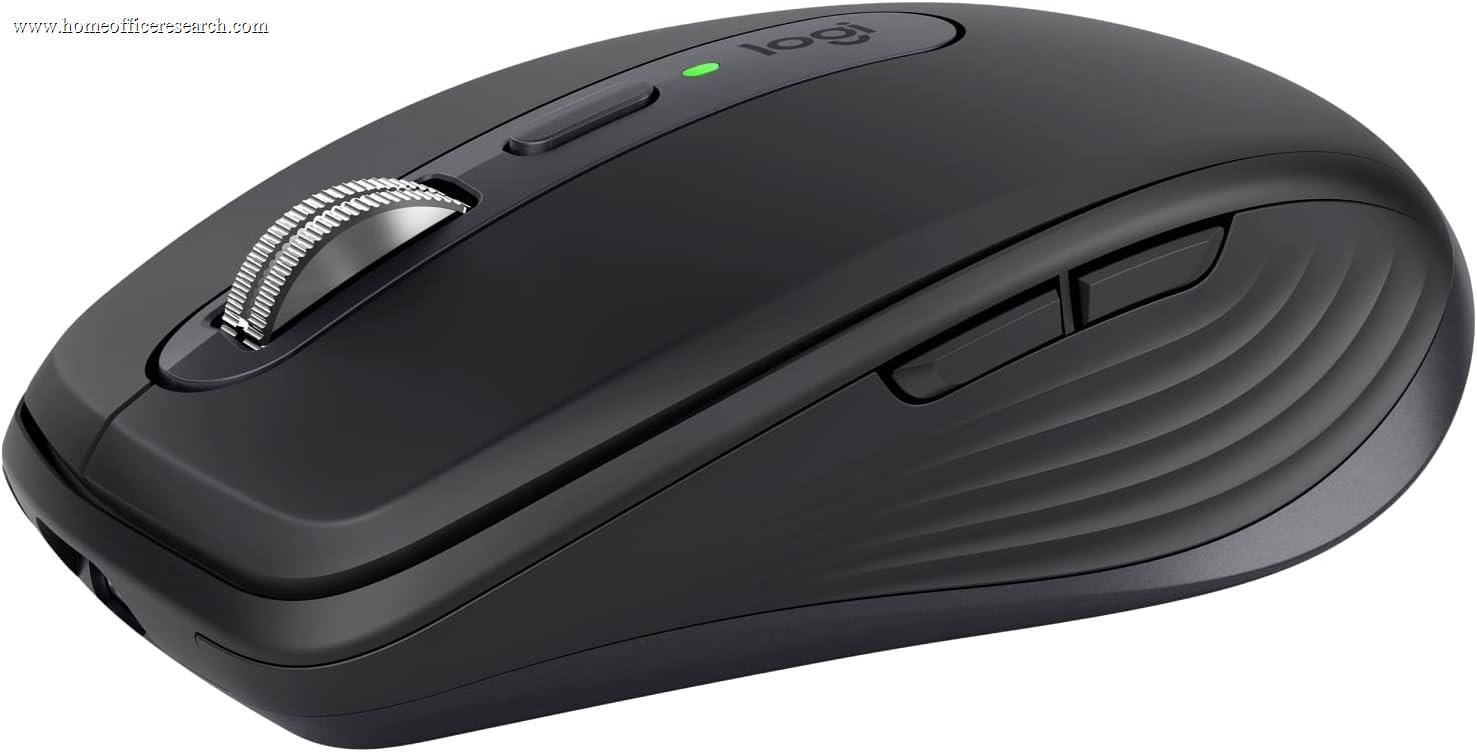
|
8.3/10 |
Compact | BT + Bolt (3) | 8000 | 6 | ✓ | 99 |
| 4 |
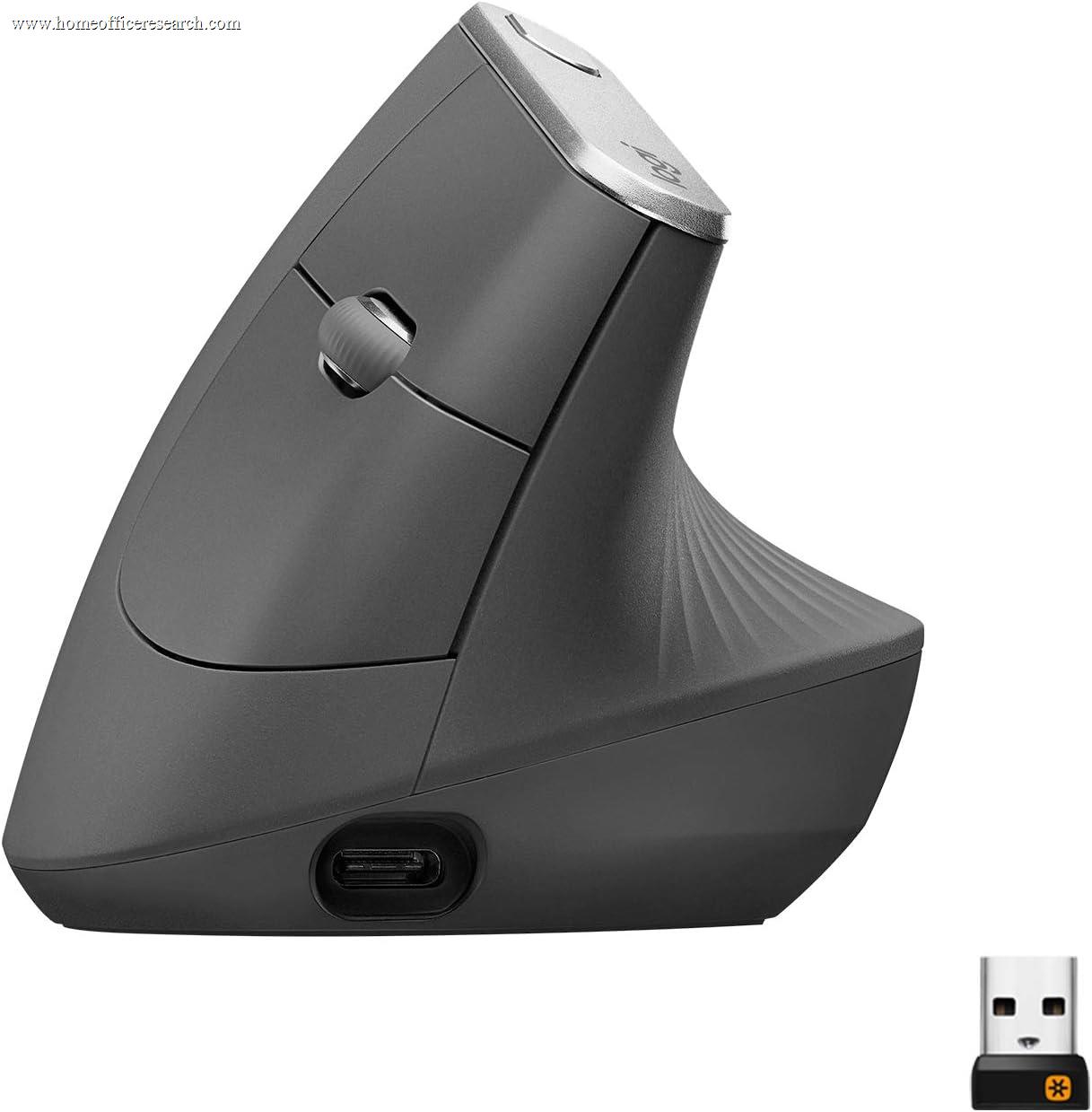
|
8.0/10 |
Vertical | BT + Bolt (3) | 4000 | 6 | — | 135 |
| ▸ Mid-Range — Strong Specialists & Everyday Wireless | ||||||||
| 5 |
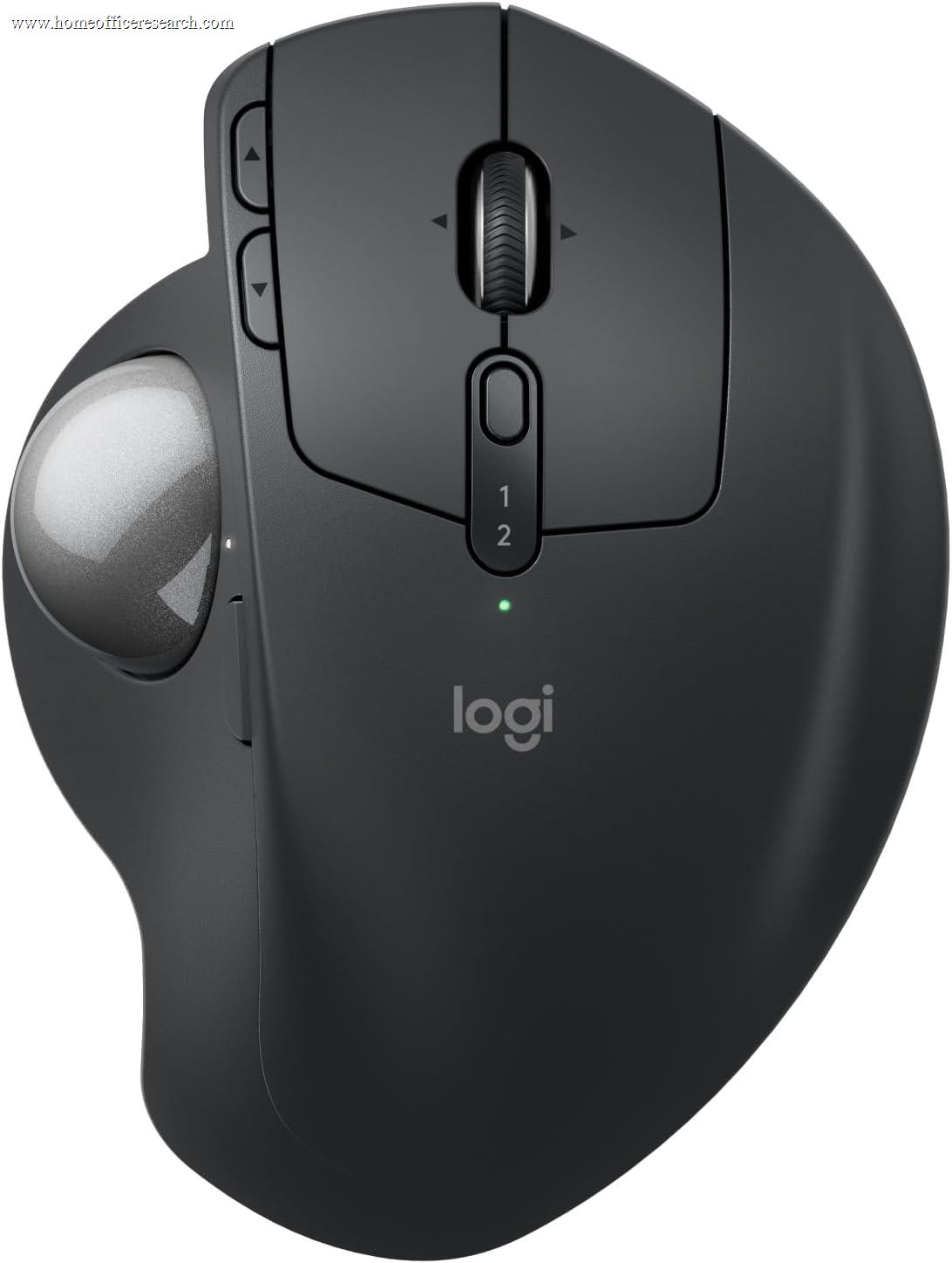
|
7.9/10 |
Trackball | BT + Bolt (2) | 2048 | 8 | ✓ | 259 |
| 6 |

|
7.7/10 |
Vertical | BT + Bolt (3) | 4000 | 6 | ✓ | 125 |
| 7 |
|
7.6/10 |
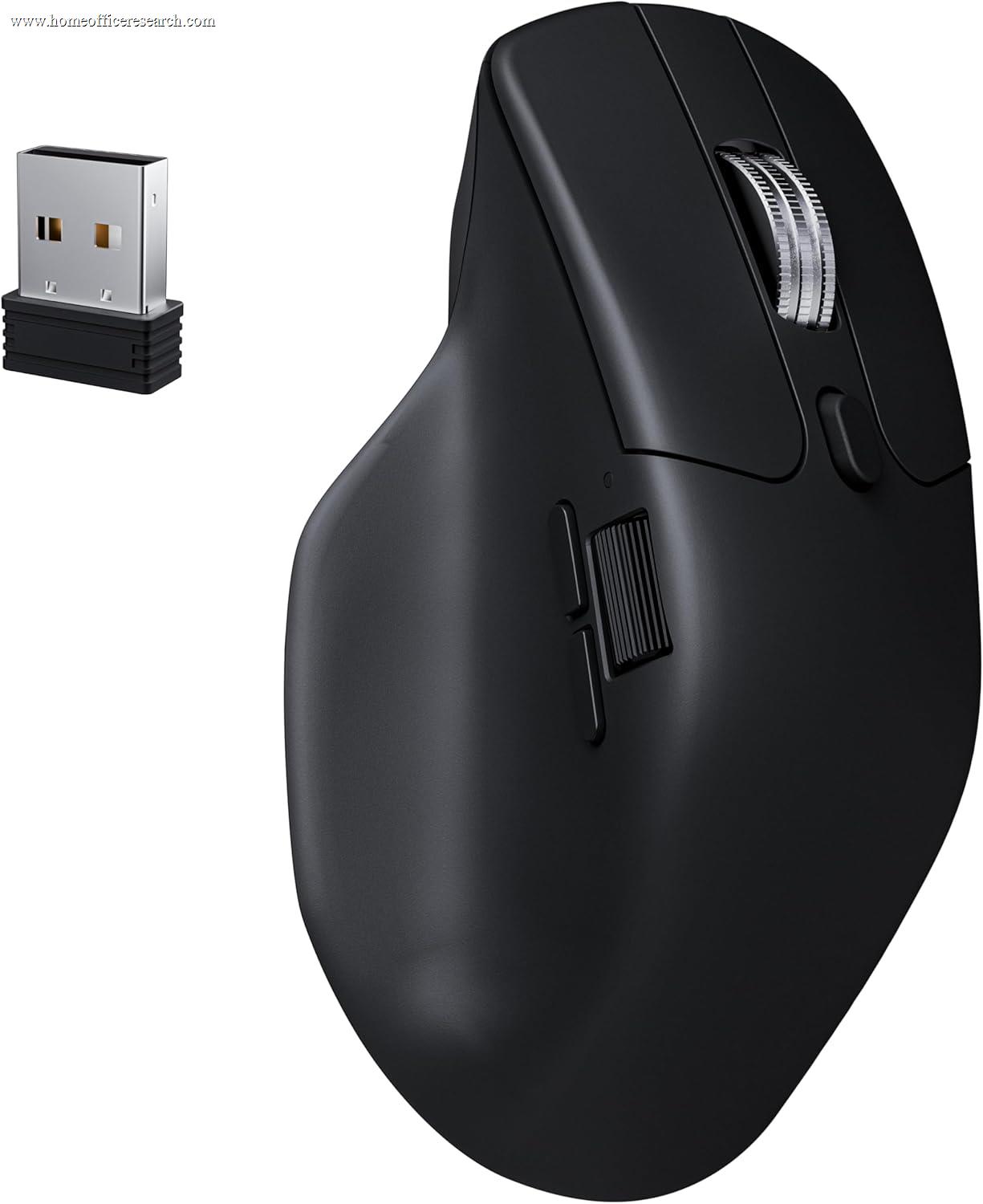
Performance | Tri-mode (2.4 / BT / USB-C) | 30000 | 6 | ✓ | 78 |
| 8 |
|
7.6/10 |
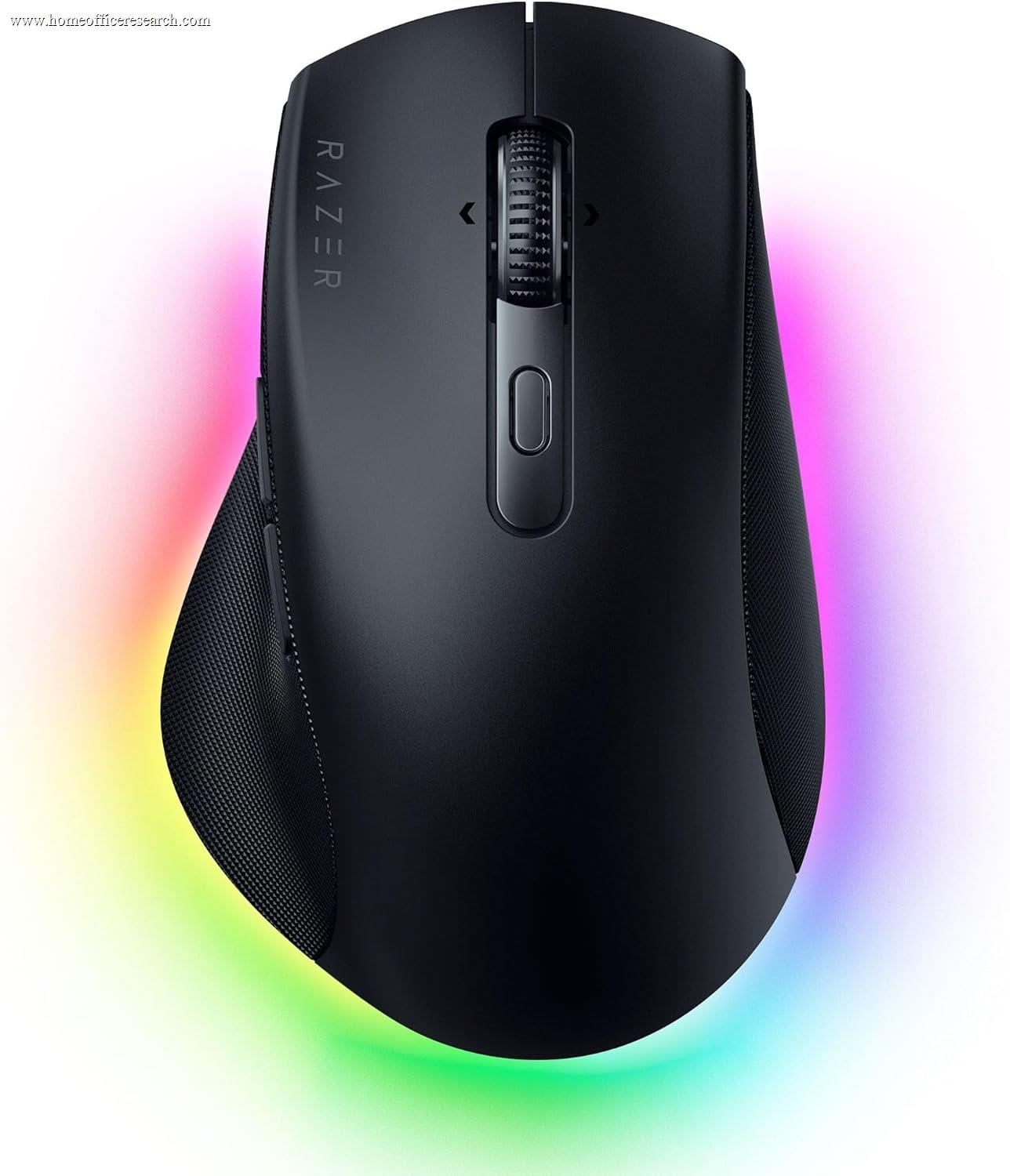
Productivity | Tri-mode (2.4 / BT / USB-C) | 30000 | 9 | — | 102 |
| 9 |
|
7.2/10 |
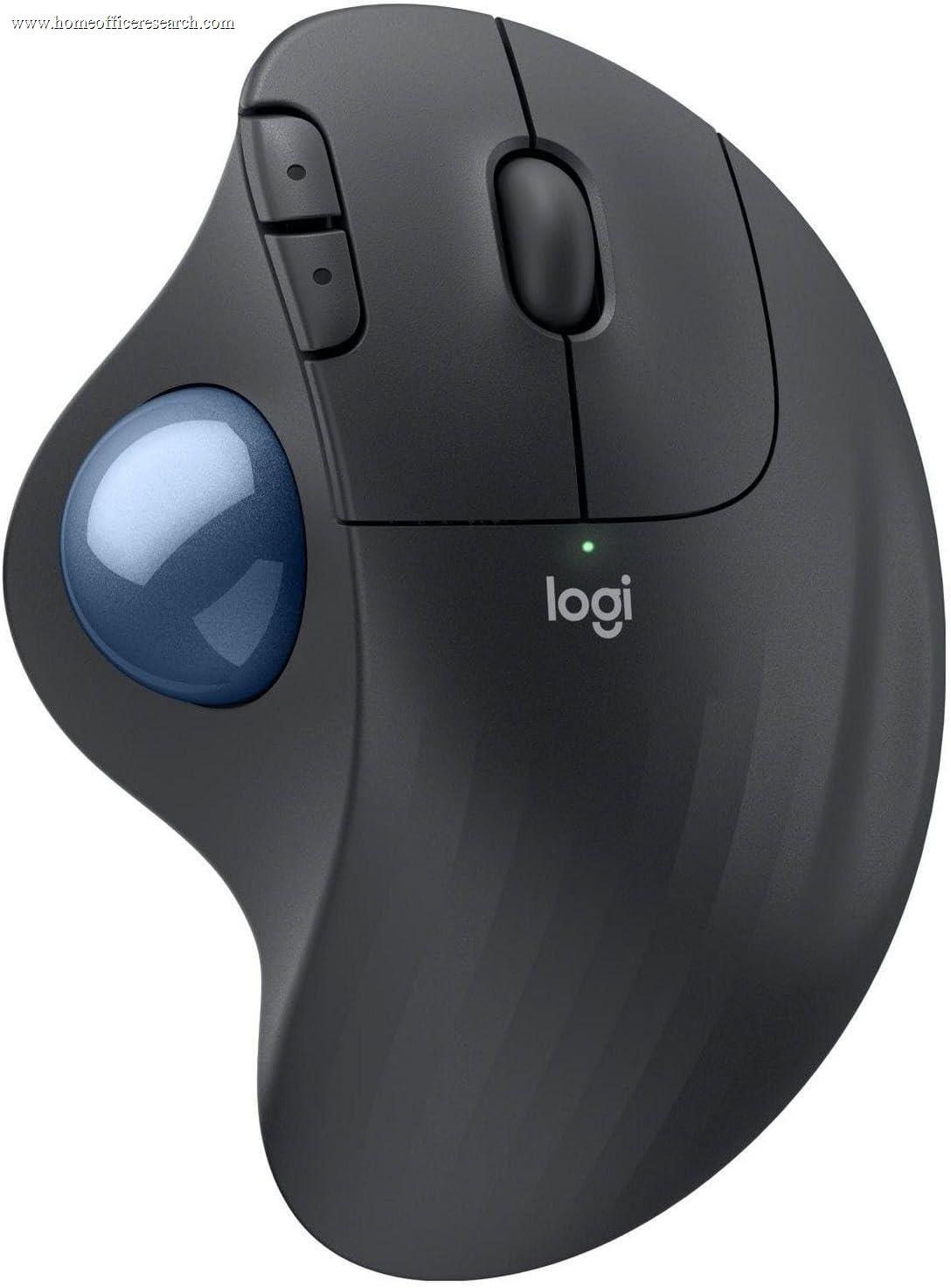
Trackball | BT + Bolt (2) | 2000 | 5 | ✓ | 145 |
| 10 |
|
6.9/10 |
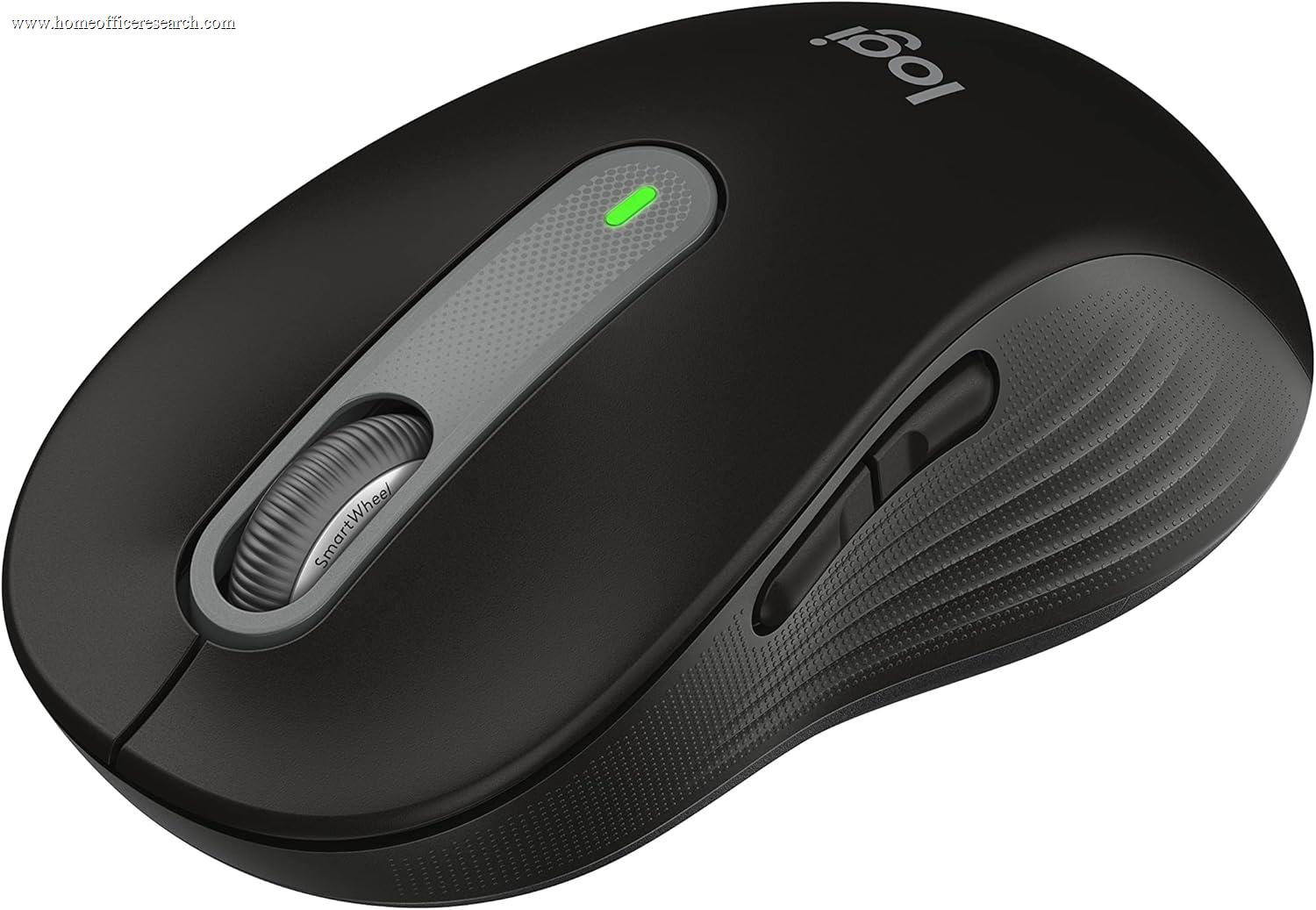
Mainstream | BT + Bolt | 4000 | 5 | ✓ | 101 |
| ▸ Budget & Ecosystem — Capable, With Clear Tradeoffs | ||||||||
| 11 |
|
6.1/10 |
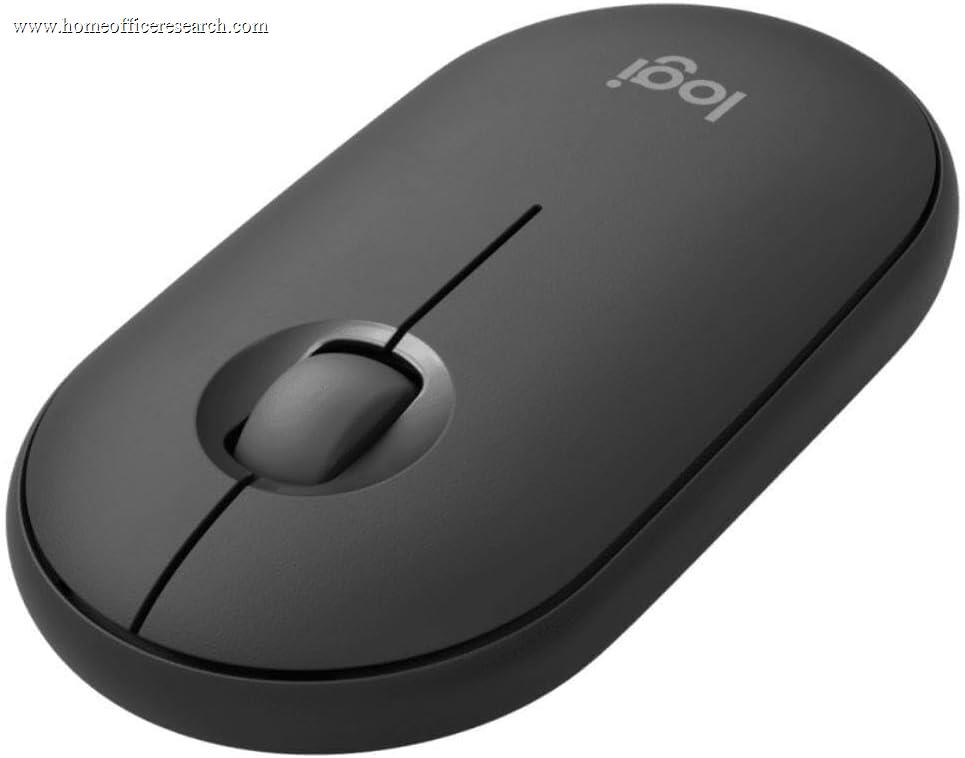
Compact | BT only (3) | 4000 | 3 | ✓ | 76 |
| 12 |
|
5.7/10 |
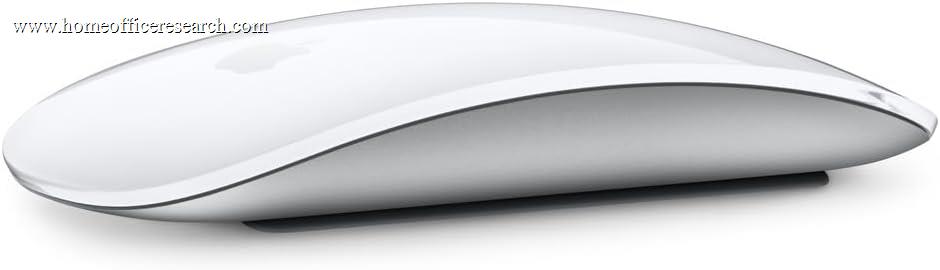
Mac | BT only (1) | — | MT | — | 99 |
How We Score
Weighted Scoring Framework — All Scores 0–10
Key Considerations When Choosing a Home Office Mouse
The Core Decision — Productivity, Vertical, or Trackball?
The most important mouse decision for home office buyers is not which brand to choose — it is which body geometry is right for your hand and your desk. This is a genuine fork in the decision tree, and the right answer depends on whether you have any existing wrist or forearm discomfort, how much desk space you have, and how much you move the cursor across multiple monitors.
A standard productivity mouse — the Logitech MX Master 4 is the benchmark — is the correct default for the large majority of users. It places the hand in a conventional palm grip, supports the most buttons and the best scroll wheels, and is the most universally comfortable shape for people without specific ergonomic issues. If you have no wrist pain and a normal amount of desk space, start here.
A vertical mouse rotates the hand into a near-vertical “handshake” position (the MX Vertical sits at a 57° angle), which reduces the forearm pronation — the inward twist — that a flat mouse forces. For users experiencing the early signs of repetitive strain, this geometry can meaningfully reduce discomfort. The tradeoff is an adjustment period of a few days and slightly less precision for fine pixel work.
A trackball stays completely stationary; you move the cursor by rolling a ball with your thumb (MX Ergo S, ERGO M575S) rather than moving the whole mouse. This eliminates the arm and shoulder movement of mousing entirely, which is the right answer for very small desks, standing desks, or users with shoulder rather than wrist issues. It also has the steepest learning curve of the three.
Bottom line: Most buyers should choose a standard productivity mouse and will be happiest with one. Choose a vertical mouse if you have wrist or forearm strain; choose a trackball if you have very little desk space or shoulder strain, or if you simply prefer not moving your arm. The discomfort you already feel is the most useful data point you have.
Quiet Clicks — Why They Matter More Than Buyers Expect
Click noise is the most underweighted mouse specification in most buying guides and one of the most practically significant for home office users. A standard mouse click is clearly audible through most webcam and headset microphones — which means every click during a video call is transmitted to everyone else on the call, and every click during a recording ends up in the audio.
Quiet-click (or “silent”) switches use a dampened mechanism that cuts click noise by roughly 90% while preserving a crisp tactile feel. Logitech’s recent MX line (MX Master 4, MX Master 3S, MX Anywhere 3S), the Signature M650’s SilentTouch, and the Pebble 2 all use them. The difference on a call is the difference between an audible tap on every click and effectively nothing.
The notable exceptions in our table are deliberate. The MX Vertical predates Logitech’s quiet-click rollout and uses standard switches. The Razer Pro Click V2 uses tactile mechanical-style switches tuned for a gaming-grade feel rather than silence. The Apple Magic Mouse uses a clicking surface with no quiet option. None of these are wrong for a private office — but for a call-heavy or shared workspace, quiet clicks should be near the top of your requirements.
Bottom line: If you take calls, record audio, or share a room, treat quiet clicks as a hard requirement rather than a nice-to-have. It is one of the few mouse features that other people on your calls will notice if it’s missing.
Multi-Device Wireless — Logi Bolt vs. Bluetooth vs. 2.4GHz
For home office use, wireless is almost always preferable to wired, and the practical question is which wireless technology fits your setup. The most valuable feature for a multi-machine desk is multi-device pairing: a single mouse paired with two or three devices simultaneously, switched with a button on the underside. If you work across a desktop and a laptop, or a Mac and a PC, this eliminates a daily friction point.
Logi Bolt is Logitech’s encrypted 2.4GHz USB receiver, and it is the most robust wireless option in this table — lower latency than Bluetooth and more resistant to interference in RF-crowded rooms. Most of the Logitech mice here pair via both Bolt and Bluetooth and switch between up to three devices, giving you the reliability of a dongle and the flexibility of Bluetooth on the same mouse.
Bluetooth-only mice (the Apple Magic Mouse, the budget Pebble 2) skip the dongle entirely, which is cleaner but subject to Bluetooth’s occasional reconnect delay and higher latency. The Magic Mouse pairs with only one device at a time, which is a real limitation for anyone who switches machines.
Tri-mode mice (Keychron M6 8K, Razer Pro Click V2) add a high-speed 2.4GHz gaming dongle with very low latency alongside Bluetooth and USB-C wired, for users who want gaming-grade responsiveness as well as office flexibility.
Bottom line: For a multi-machine desk, Bluetooth-plus-Bolt with three-device switching (the Logitech MX standard) is the most useful combination. Single-machine users are well served by any of the above; Bluetooth-only is the one option that quietly limits you if your setup grows.
Sensor & DPI — How Much Do You Actually Need?
DPI (dots per inch) is the most over-marketed mouse specification. It describes how far the cursor moves per inch of physical movement, and the headline numbers — 16,000, 26,000, 30,000 — are almost entirely irrelevant to office work. For typical desktop use across one or two monitors, 800 to 1,600 DPI is the comfortable range most people actually use, and any mouse in this table has many times that ceiling.
Where higher DPI genuinely helps is driving a large multi-monitor or 5K/6K setup, where you want the cursor to cross a wide pixel expanse without repeatedly lifting and repositioning the mouse. Even there, 4,000 DPI is plenty. The 30,000 DPI figures on the Keychron M6 8K and Razer Pro Click V2 are gaming-sensor specifications; they do no harm for office work but should not drive a purchase decision.
The sensor specification that does matter for office desks is surface versatility. Logitech’s Darkfield sensor (MX Master 4, MX Master 3S, MX Anywhere 3S) and Razer’s Focus Pro sensor (Pro Click V2) track on glass and high-gloss surfaces where most optical sensors fail — relevant if you use a glass desk or work without a mousepad. Trackballs sidestep the surface question entirely because the sensor reads an internal ball, not the desk.
Bottom line: Ignore the DPI arms race. Any mouse here has far more resolution than office work requires. If you have a glass or glossy desk, prioritize a glass-capable sensor (Logitech Darkfield or Razer Focus Pro) or a trackball; otherwise the sensor is not where your decision should be made.
Scroll Wheels — MagSpeed, Free-Spin, and the Thumbwheel
The scroll wheel is the mouse component you touch most after the buttons, and it is where the premium productivity mice earn a meaningful part of their price. The standout feature is Logitech’s MagSpeed electromagnetic wheel (MX Master 4 and 3S): it switches automatically between a precise click-to-click ratcheted mode and a free-spinning mode that can fly through a thousand lines in one flick — useful for long documents, code, and spreadsheets. Because it’s electromagnetic rather than mechanical, it’s also nearly silent.
The MX Master series adds a second dedicated thumbwheel for horizontal scrolling, which is genuinely useful for wide spreadsheets and video-editing timelines — a capability the compact and budget mice in this table do not have. Most other quality mice use a standard ratcheted wheel, sometimes with left/right tilt for horizontal scrolling, which covers the majority of needs at a lower price.
Bottom line: If you work in long documents, large spreadsheets, or editing timelines, the MagSpeed wheel and dedicated thumbwheel on the MX Master line are a daily quality-of-life upgrade that justifies their premium. For lighter scrolling needs, a standard tilt wheel is perfectly adequate.
Hand Size & Grip Style — The Fit Variable
A mouse that fits one hand can be uncomfortable for another, and fit is the variable most often ignored at purchase. The two things to know are your approximate hand length and your grip style. Palm grip (whole hand resting on the mouse) rewards a larger, sculpted body like the MX Master series. Claw or fingertip grip (hand arched, fingers controlling the mouse) works well with a smaller body like the MX Anywhere 3S or Pebble 2.
Several products in this table are explicitly hand-size-specific. The Logitech Lift is the vertical mouse engineered for small-to-medium hands, while the larger MX Vertical targets medium-to-large hands — choosing the wrong one is the most common mistake with vertical mice. The Signature M650 ships in both a standard size and a larger “L” variant for the same reason.
Bottom line: Match the body size to your hand and grip. Large hands and palm grips want the MX Master 4 or MX Vertical; smaller hands or fingertip grips want the MX Anywhere 3S, Lift, or Pebble 2. Fit drives all-day comfort more than any spec on the sheet.
Recommended Brands by Use Case
Mouse selection spans genuinely divergent needs — a sculpted productivity mouse for a multi-monitor workstation and a vertical or trackball for a user managing wrist strain are both correct answers for different buyers. The following reflects where each brand in our evaluation excels.
Logitech — Best for Most Users
Logitech’s MX and Signature lines cover the widest range of home office needs with the most consistent quality. The MX Master 4 is the most complete all-round mouse in our evaluation — Darkfield sensor, MagSpeed wheel, dedicated thumbwheel, quiet clicks, multi-device Bolt-plus-Bluetooth, and the deepest software. The MX Master 3S delivers nearly all of that at a lower price and is the stronger value pick. For specialists, Logitech also makes the strongest vertical (MX Vertical, Lift) and trackball (MX Ergo S, ERGO M575S) options in the mainstream market, plus capable budget mice (Signature M650, Pebble 2). For the large majority of buyers, the right mouse is a Logitech.
Keychron — Best for Performance Value
Keychron has extended its enthusiast-keyboard credibility into mice with the M6 8K — a lightweight 78g body, a flagship PixArt 3950 sensor, 8,000Hz polling, tri-mode wireless, and a silent-click variant, at roughly half the price of a premium productivity mouse. It lacks the sculpted thumb controls and advanced scrolling of the MX Master line, so it is less of a dedicated productivity tool, but for buyers who want gaming-grade responsiveness and low latency in a mouse that still takes calls quietly, it is the value standout.
Razer — Best for Buttons & Crossover Use
Razer’s Pro Click V2 is the productivity-oriented entry in a lineup better known for gaming. It brings the most programmable buttons in our table (nine), a 30,000 DPI Focus Pro sensor, a tilting HyperScroll wheel, and tri-mode wireless, with an ergonomic 30° tilt and thumb rest. It is the strongest pick for power users who want many remappable controls and gaming-grade tracking in one mouse. The tradeoffs are non-silent clicks and Razer’s heavier, busier Synapse software. A vertical edition exists for users who want the button count in a handshake geometry.
Apple — Best for Mac-Only Gesture Users
The Apple Magic Mouse is the lowest-friction option for users whose workflow is entirely within the Apple ecosystem and who value its multi-touch gesture surface — swiping between pages and spaces directly on the mouse. Its limitations are real and should not be understated: a flat, low-profile shape that many find uncomfortable for long sessions, single-device Bluetooth pairing, no quiet clicks, and a charging port on the underside that makes it unusable while charging. Its score reflects these ergonomic and connectivity constraints against the broader market — not the quality of its gestures, which are genuinely good on macOS.